> For clean Markdown of any page, append .md to the page URL.
> For a complete documentation index, see https://docs.rydhm.ai/llms.txt.
> For AI client integration (Claude Code, Cursor, etc.), connect to the MCP server at https://docs.rydhm.ai/_mcp/server.
# Embed
The website widget puts a chat and voice launcher in the corner of your site. Visitors open it and talk to your expert, with no account. This page covers the embed code itself. To style the widget, see [Web widget](/channels/web-widget).
## Before you start
The expert must be live: **Live** or **Live and listed** (`unlisted` or `public` in the API). A draft expert's widget renders nothing.
## Add the widget
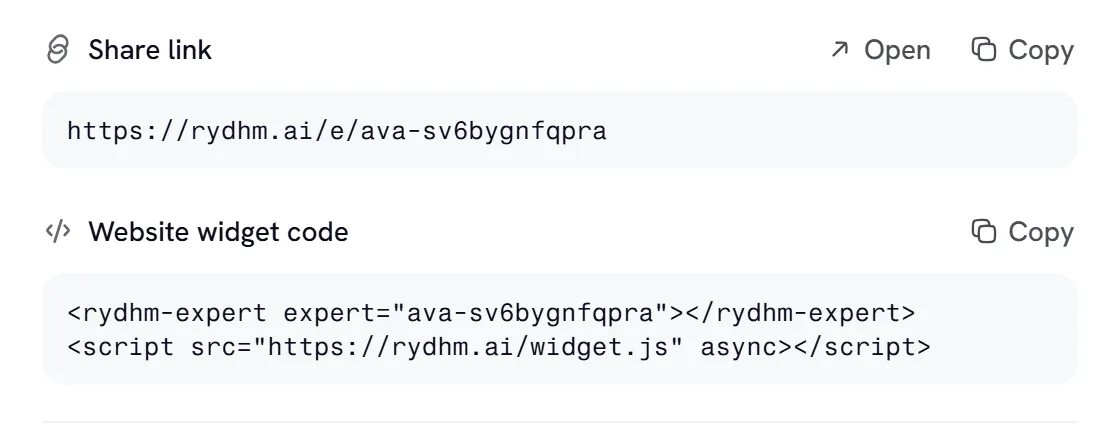
Copy the **Website widget code** from the expert's sharing dialog (**Make live** in its header) or its **Share** tab, or write it yourself:
```html
```
* `` marks where the expert is configured. The launcher itself is fixed to the bottom-right corner of the page.
* The `expert` attribute is the expert's public link code: the part after `/e/` in its public link.
* The script's address is your Rydhm app's address. Use the one in the snippet the app gives you.
Place the tag anywhere in your page's ``, and load the script once per page.
## Attributes
| Attribute | Required | What it does |
| ----------- | -------- | -------------------------------------------------------------------------- |
| `expert` | Yes | The expert's public link code. |
| `variables` | No | A JSON object of values for the expert's `{{variables}}`. |
| `language` | No | The language the visitor is greeted in, as a two-letter code such as `hi`. |
### `variables`
If the expert's prompts use [variables](/experts/persona) such as `{{name}}` or `{{plan}}`, fill them for each visitor:
```html
```
* Names use lowercase letters, digits and underscores, start with a letter, and are up to 32 characters.
* Values are text, up to 200 characters each. Line breaks become spaces.
* Up to 20 variables.
* Only names the expert's prompts use are read. Others are ignored, as is a value that isn't valid JSON.
Values are placed into the prompt as text for the expert to read, never as instructions. Even so, don't put secrets or sensitive personal data in them: they are visible in your page's source.
When the expert's instructions use variables, the snippet in the app already lists their names.
### `language`
For an expert that speaks more than one language, `language` picks the one the visitor is greeted in:
```html
```
The code must be one of the expert's languages; otherwise it is ignored. The visitor can still switch language inside the panel, and their choice is remembered in their browser. See [Languages](/experts/languages).
## How the widget behaves
* The widget opens the expert in a sandboxed iframe. The voice session runs inside it, so no key or token is ever on your page.
* The iframe loads only when a visitor first opens the launcher. A widget nobody opens costs nothing and asks for no microphone permission.
* The launcher's look (variant, avatar, colors, corner radius, theme) comes from the expert's widget settings in the app. Change them there; you don't need to change the embed code.
* The **Full card** variant opens by itself on screens 768 pixels wide and up, after your page has loaded. On smaller screens it starts closed.
* Escape closes the panel. Closing the panel ends a live call.
* Visitors can rate each reply and each call. Ratings appear in the workspace's [Analytics](/quality/analytics) and on each conversation.
## Choose which websites can embed the expert
By default, any website can embed a live expert. To limit it, list the allowed websites:
* **For one expert:** the expert's **Share** tab, under **Allowed websites**.
* **For the whole workspace:** **Settings**, under **Websites that can embed your experts**. Experts without their own list use this one.
An empty list means any website. A list holds up to 20 entries, in these forms:
| Entry | Matches |
| --------------------- | ----------------------------------------------------------------------------------------------------------------------- |
| `example.com` | `http://example.com` and `https://example.com` on the default ports. |
| `https://example.com` | `https://example.com` only. |
| `*.example.com` | Any subdomain, such as `www.example.com` or `a.b.example.com`, but not `example.com` itself. Add both if you need both. |
| `localhost:3000` | An explicit port, on http or https. Useful while you develop. |
Paths are ignored, and international domain names are stored in their `xn--` form. IPv6 addresses can't be listed.
On a website that isn't on the list:
* the launcher doesn't appear, and the browser console shows a warning for whoever builds the page;
* the browser refuses to show the expert's panel in a frame there;
* the expert's paid public routes (starting a chat or a voice call, sending it to a meeting) refuse requests from that site with `403` and `error: "origin_not_allowed"`.
The expert's public link (`/e/`) keeps working everywhere.
## Embed the panel yourself
If you'd rather place the panel in your own layout, frame the embed page directly:
```html
```
The embed page reads these query parameters:
| Parameter | What it does |
| --------- | ----------------------------------------------------------------------------------------------- |
| `vars` | A URL-encoded JSON object of variable values, with the same rules as the `variables` attribute. |
| `lang` | The language to greet in, with the same rules as the `language` attribute. |
| `theme` | `light`, `dark` or `auto`, to paint the panel before the expert's settings load. |
Each variable can also be passed as its own parameter, such as `?name=Priya`. This works on the public link too: `https://app.rydhm.ai/e/ava-k8nzvywsyuhw?name=Priya`.
The allowed-websites list applies to a hand-placed iframe the same way.
## Build your own interface
To skip the widget entirely and build your own chat or voice interface, use the public API for live experts, or the authenticated API from your own backend:
* [A2A and public experts](/developers/a2a) covers the public routes that need no key.
* [Overview](/developers/overview) covers chat and voice sessions with an API key.