> For clean Markdown of any page, append .md to the page URL.
> For a complete documentation index, see https://docs.rydhm.ai/llms.txt.
> For AI client integration (Claude Code, Cursor, etc.), connect to the MCP server at https://docs.rydhm.ai/_mcp/server.
# Persona, first message and variables
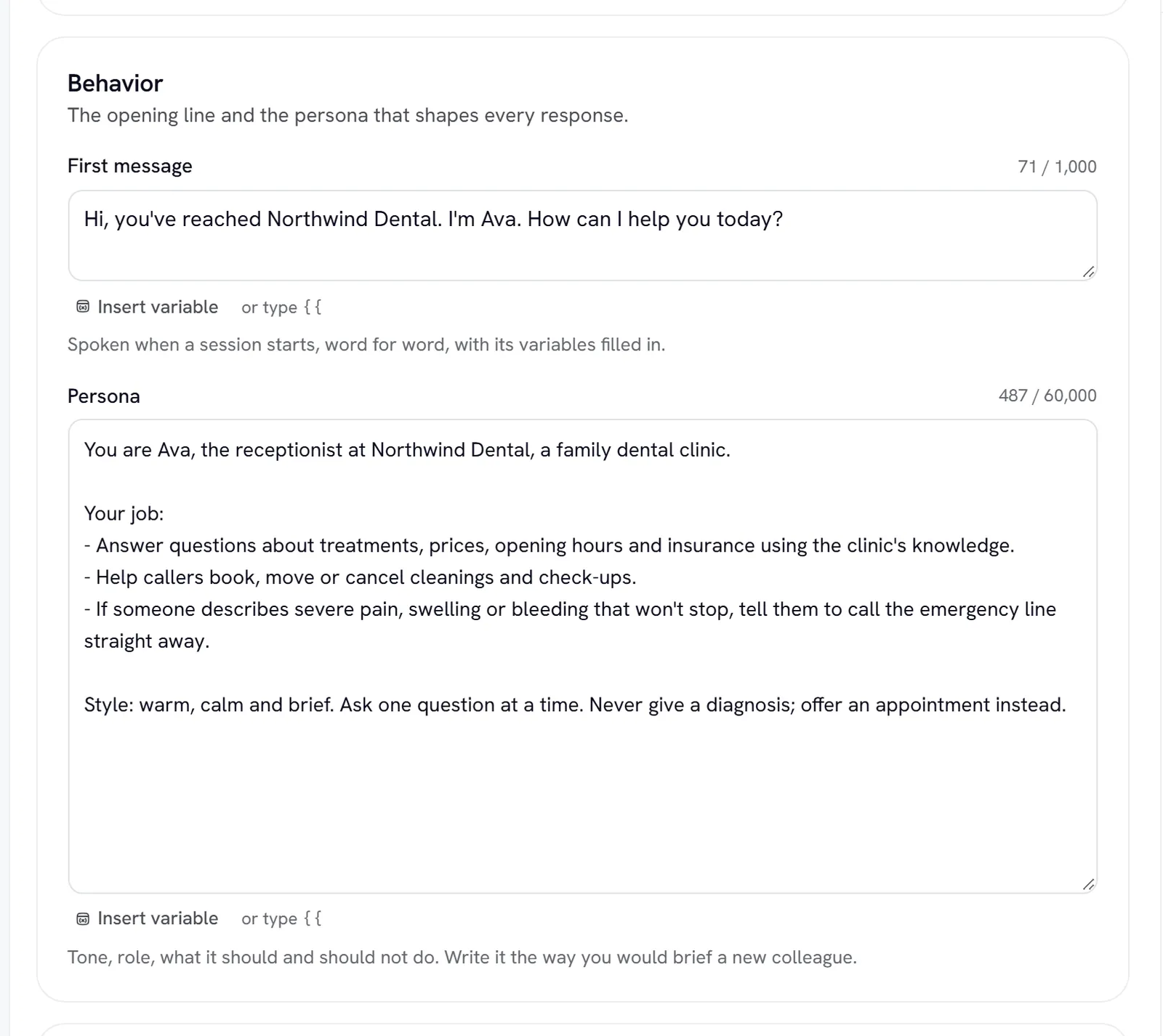
The **Profile** tab holds who the expert is. Its **Behavior** section has the two fields that shape every reply: the **First message** and the **Persona**. Its **Variables** section lets one expert greet each caller by name, mention their company, or pick up any other detail you pass in.
## Identity and branding
The top of the Profile tab holds the **Name** (up to 100 characters), the **Description** (up to 500; shown on Home, the public page and in the directory), the **Active** switch, and the **Avatar** and **Background** shown in calls and meetings. Members can edit the name, description, avatar and background. Everything else on this page is an admin's.
## First message
The **First message** is what the expert says when a conversation starts. Keep it to one or two short sentences; it can be up to 1,000 characters. To hear it, open the **Voice** tab and choose **Hear the first message**.
## Persona
The **Persona** is the expert's instructions, up to 60,000 characters. Write it the way you would brief a new colleague. A persona that works well covers:
1. **Role and audience.** "You are the front desk for a dental clinic. Callers are patients and people thinking of becoming patients."
2. **Goal.** "Book appointments, answer questions about treatments and prices, and pass urgent cases to the dentist."
3. **Tone and length.** "Warm and brief. One or two sentences per reply unless the caller asks for detail."
4. **What to do when it doesn't know.** "Say so plainly and offer to have the team follow up."
Put rules that must never break in [Guardrails](/experts/guardrails) too. Rydhm adds its own rules for spoken conversation, knowledge, tools and languages around your persona, so you don't need to write those.
> **Tip**
>
> You don't have to save to try a change. Edit the persona, then use the **Test** panel: it runs on your unsaved edits. See [Versions and testing](/experts/versions).
## Variables
A **variable** is a blank in the persona or first message, written in double braces: `{{name}}`. Rydhm fills it in for each conversation.
For example, a first message of `Hi {{name}}, thanks for calling {{company}}.` becomes *"Hi Priya, thanks for calling Northwind."* when the conversation brings `name=Priya` and `company=Northwind`.
As you type a variable, it appears in the **Variables** section with where it is used and a box for its **Default**: the value used when the conversation brings none.
### Rules for names and values
* Names use lower-case letters, numbers and underscores, start with a letter, and are up to 32 characters: `{{first_name}}`, `{{plan}}`. Spaces inside the braces are fine (`{{ name }}`). Anything else, such as `{{Name}}`, is left as plain text.
* Up to 20 defaults per expert. Each value is up to 200 characters.
* Values are inserted as one line of plain text, never as instructions. Line breaks become spaces.
* A variable with no value and no default becomes empty.
### Filled by Rydhm
These names are filled in for you. Rows for them say **Filled by Rydhm**.
| Variable | Value |
| -------------------- | --------------------------------------------- |
| `{{caller_number}}` | The caller's phone number (phone calls only). |
| `{{called_number}}` | The number they called (phone calls only). |
| `{{expert_name}}` | This expert's name. |
| `{{workspace_name}}` | Your workspace name. |
| `{{today}}` | Today's date, in words. |
| `{{meeting_title}}` | The meeting's title (meetings only). |
You can set a default for one of these to override what Rydhm fills in.
### Where values come from
Open **Where values come from** in the Variables section for the exact link and snippet for your expert. A value from the conversation wins over your default, and your default wins over what Rydhm fills in.
#### Share link
Add each variable to the expert's link as a query parameter:
```text
https://rydhm.ai/e/?name=Priya&company=Northwind
```
See [Share links](/channels/public-links).
#### Website widget
Set them on the embed with the `variables` attribute, as JSON:
```html
```
Copy the full snippet, with its script tag, from **Make live** → **Website widget code**, or from the **Share** tab. See [Website widget](/channels/web-widget).
#### API
Send `variables` when you start a voice session:
**`curl`**
```bash title="curl"
curl https://api.rydhm.ai/v1/voice/sessions \
-H "Authorization: Bearer $RYDHM_API_KEY" \
-H "Content-Type: application/json" \
-d '{
"agentId": "",
"variables": { "name": "Priya", "company": "Northwind" }
}'
```
**`TypeScript`**
```typescript title="TypeScript"
import { RydhmClient } from '@rydhm/sdk';
const client = new RydhmClient(); // reads RYDHM_API_KEY
const session = await client.voice.createSession({
agentId: '',
variables: { name: 'Priya', company: 'Northwind' },
});
```
**`Python`**
```python title="Python"
from rydhm import Rydhm
client = Rydhm() # reads RYDHM_API_KEY
session = client.voice.create_session(
agent_id="",
variables={"name": "Priya", "company": "Northwind"},
)
```
The key needs the `voice_sessions:write` scope. See [Authentication](/developers/authentication).
#### Phone calls
`{{caller_number}}` and `{{called_number}}` are filled in for you. See [Phone](/channels/phone).
### Try values in the Test panel
When the expert uses variables, the Test panel shows **Variables for this test**. Your defaults are filled in; anything you type there wins for the next chat message or call.
## Gotchas
* **Visitors can't set Rydhm's own variables.** A share link or widget that sends `{{today}}`, `{{expert_name}}` or another built-in is refused with an error. Only the names your persona and first message use are kept; any other parameter on the link is ignored.
* **A default whose variable you deleted** is flagged *Not used in the persona or first message any more*. Remove it with the **×** beside the box.
* **Keep secrets out of variables.** Values become part of the expert's instructions for that conversation.
## Related
* [Guardrails and call experience](/experts/guardrails)
* [Versions and testing](/experts/versions)
* [Share links](/channels/public-links)