

Meetings
An expert can join a video meeting as a participant. It shows up with its own name and picture, listens, answers when it can help, and uses the meeting chat. When the meeting ends, it writes a summary and emails it to your team.
Send an expert to a meeting
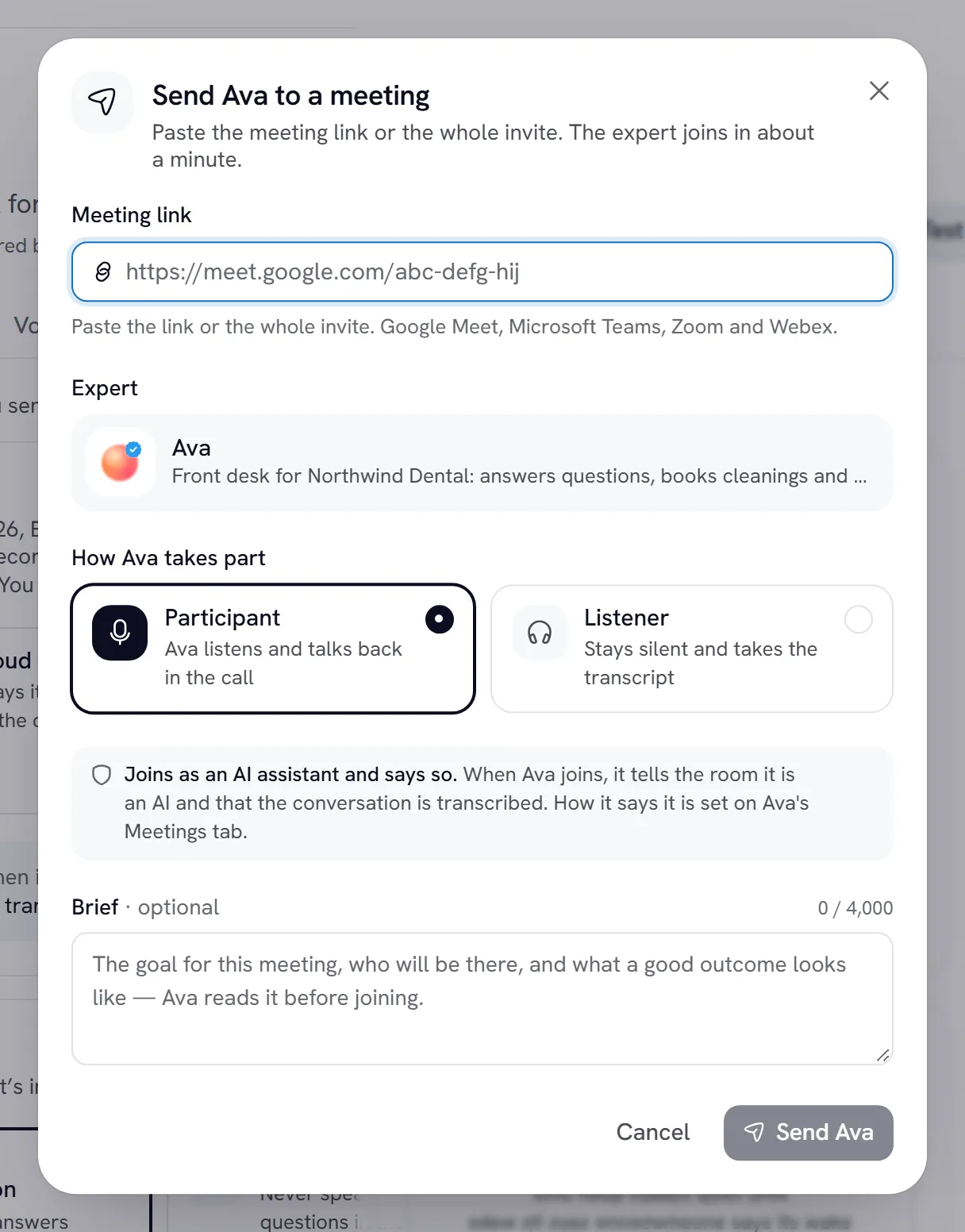
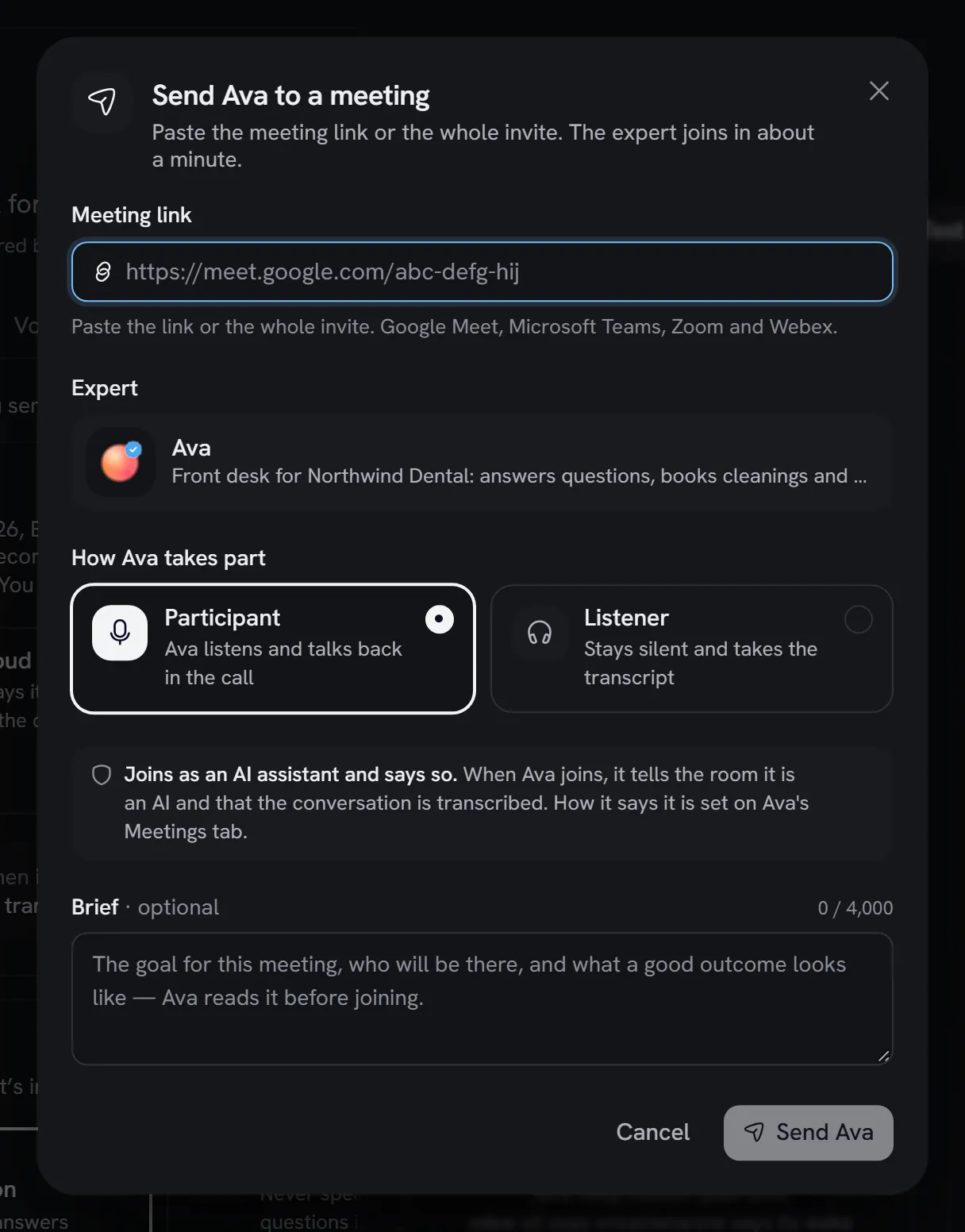
Open the Send dialog
Select Send to meeting on Conversations, Calendar or an expert’s page, or use Send an expert to a meeting in the top bar.
Paste the link
Paste the meeting link into Meeting link. You can paste the whole invite: Rydhm keeps only the join link and says which platform it found, for example “Found the Zoom link in what you pasted”.
Pick the expert and how it takes part
Choose the Expert, then Participant (it listens and talks back) or Listener (it stays silent and takes the transcript).
The meeting page shows its status: Joining…, Live, Completed or Failed. To take the expert out, select Remove from call. The dialog always sends the expert now; there’s no option to schedule it.
Set how the expert behaves in meetings
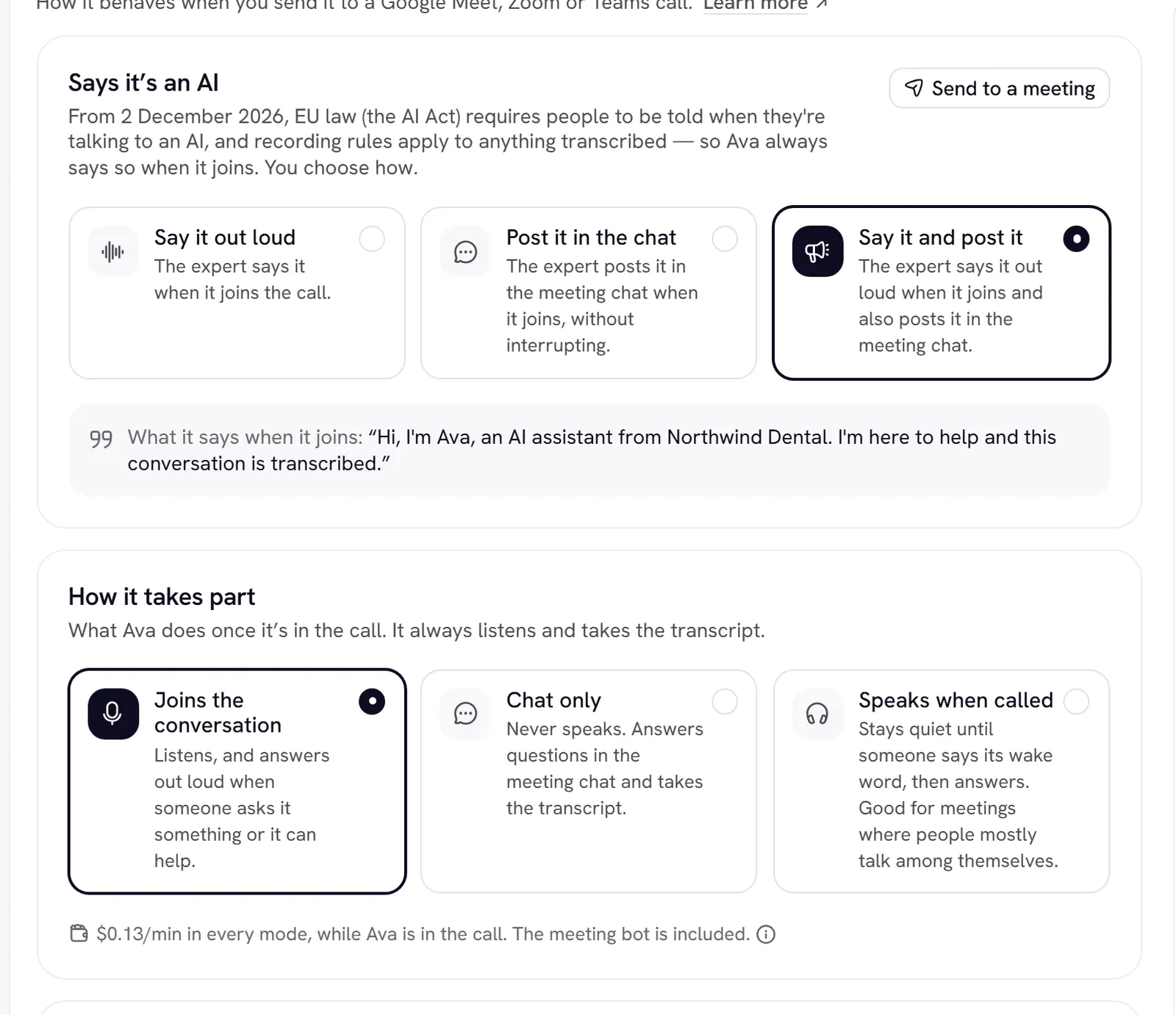
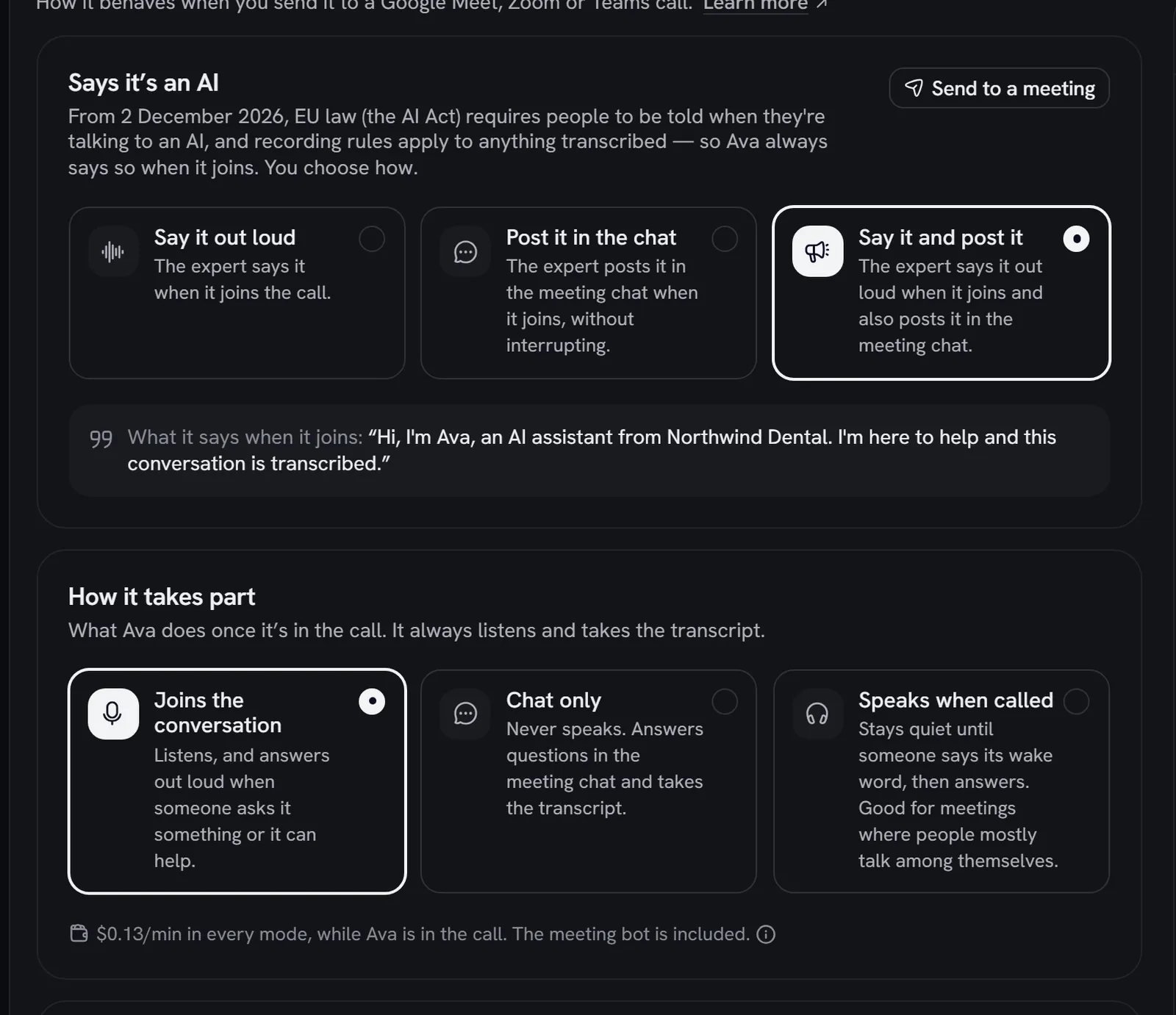
Admins set this per expert on the expert’s Meetings tab, then select Save meeting settings.
Says it’s an AI. The expert always tells people it’s an AI when it joins. You can’t turn this off, only choose how: Say it and post it (the default), Say it out loud, or Post it in the chat. It says: “Hi, I’m (expert), an AI assistant from (workspace). I’m here to help and this conversation is transcribed.”
How it takes part (in Participant meetings):
In Listener mode the expert stays silent and doesn’t announce itself. Tell the people in the meeting that it is there and recording.
Remembers earlier meetings. With Use earlier meetings on (the default), the expert reads up to 3 earlier meeting summaries before joining. It only uses meetings from your workspace, with the same expert, from the last 180 days, that share the join link or at least one person on the calendar invite. The meeting page shows what it was given under What (expert) remembered.
The meeting chat
In Participant meetings the expert reads and writes the meeting chat:
- Questions typed in the chat get an answer, out loud or (in Chat only mode) typed. It posts links, spellings and short lists there too.
- Email the summary: someone types an email address in the chat and asks for the summary. The expert confirms, and the address gets it when the meeting ends. Only typed addresses count, never spoken ones. Up to 10 per meeting.
- Send it to everyone emails everyone on the calendar invite and asks people with no known address to type theirs.
Summaries and the Meeting Brief PDF
When the meeting ends, Rydhm writes a summary from the full transcript: an overview, Key points, Decisions, Action items and Topics. Very short meetings get no summary.
The meeting page has two tabs:
- Summary: with Copy, Brief PDF and Regenerate. If there’s no summary yet, select Generate summary.
- Transcript: with Find in transcript…, Copy and Download (Markdown). Typed chat lines appear here too.
Brief PDF downloads the Meeting Brief: an executive summary, requirement analysis, approach and proposed solution, action items and decisions, and the full transcript as an appendix.
Select Ask (expert) on the meeting page to chat with the expert about the meeting.
The summary email
After the first summary is written, Rydhm emails it once, with the Meeting Brief PDF attached. Selecting Regenerate doesn’t send it again.
- Your team gets it: the person who sent the expert, members whose name matches someone in the call, and invitees on your team’s own email domains. Replies go to the person who sent the expert.
- Guests get it only if they asked: they typed their address in the meeting chat, or someone asked for “everyone” and they were on the calendar invite. A guest’s copy has no app link and no internal analysis. Guests are never emailed because of something said out loud.
On the Summary tab you can see who it went to, or select Email summary or Send again.
The Calendar
Connect your calendar in Settings → Integrations: Google Calendar or Outlook Calendar. Each person connects their own. Then open Calendar to see what’s coming up, by Day, Week or Month.
To bring an expert to an event, open it, pick one under Add an expert, choose Participant or Listener, and select Add (with the expert’s name).
Adding an expert to an event sends it to the meeting link right away. It doesn’t wait for the start time. Add it when the meeting is about to start.
Experts don’t join meetings on their own. Someone has to send them.
Visitors on your public page
Visitors to an expert’s public page can select Send to my meeting when Let visitors send it to meetings is on in the expert’s Share tab. These meetings use Participant mode with knowledge only, no brief and no workspace tools, up to 3 per visitor an hour and 50 per expert a day.
Delete, costs and limits
- An admin, or the person who sent the expert, can delete a meeting that isn’t live with Delete meeting. You can Undo for a few seconds; after 30 days it’s gone for good. See Conversations.
- Meetings cost $0.13 a minute, from going live to the end. See Billing.
- A workspace can send experts to up to 30 meetings a minute and 300 an hour.