

Alerts
Alerts watch your workspace and tell your admins when something goes wrong. Each kind of alert is a monitor. Every workspace starts with all monitors switched on at sensible thresholds, so you get useful alerts before you change anything.
You manage monitors on Developers → Alerts. Only admins and the owner can open it. See Members and roles.
The monitors
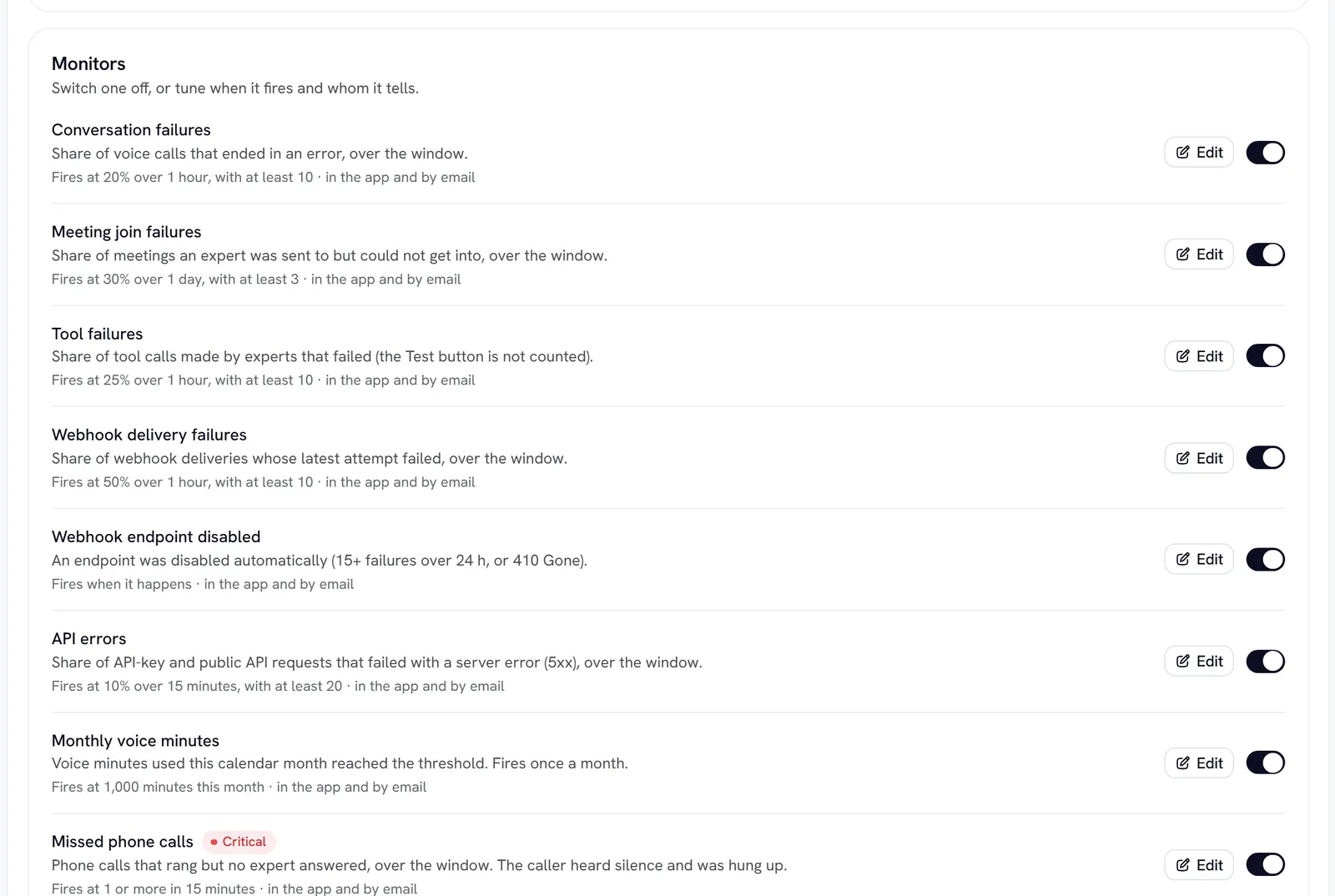
Most monitors are checked every five minutes. Event monitors fire as soon as the thing happens.
Missed phone calls is Critical, because a caller heard silence. Monthly voice minutes is informational; the rest are warnings. Each alert says what happened and what to do first.
Tune a monitor
Set when it fires
- Fire at: the threshold. For Monthly voice minutes it reads Fire when the month reaches.
- Over the last: the window, from 15 minutes to 7 days.
- Only with at least: the smallest number of samples in the window. This stops one failure out of two from paging anyone.
- After firing, stay quiet for: a pause after it fires, so a monitor that keeps tripping tells you once per pause.
Event monitors (Webhook endpoint disabled and Blocked visitor messages) have no threshold or window, only the Tell admins choice.
Incidents
When a monitor fires, it opens an incident: a red banner at the top of Developers → Alerts says what is firing and what to do, the monitor’s row shows Firing, and admins are told on the channels you picked. An incident resolves by itself when the numbers recover, or you can select Dismiss.
Blocked visitor messages works a little differently. Later blocks add to the open incident instead of opening new ones. It closes once an hour passes with no new block.
The Incidents list shows every incident, filtered by All, Active, Resolved or Dismissed. Incidents are kept for 90 days.
Service monitors on the same page show the health of Rydhm itself. You can’t change them, and Rydhm’s team is told when one fires.
Send alerts to Slack or PagerDuty
Besides the bell and email, admins can send every alert to Slack, PagerDuty or both. The setting covers the whole workspace.
Get the address from your tool
- Slack: in Slack, go to Apps → Incoming Webhooks → Add to a channel, then copy the URL. It starts with
https://hooks.slack.com/services/. - PagerDuty: on your service, go to Integrations, add Events API V2, and copy its integration key.
Every alert is sent with its severity: critical, warning or info. When the alert clears, Slack gets a “Resolved” message and the PagerDuty incident is resolved. Rydhm stores the webhook URL and the integration key encrypted, and shows them masked. Use Replace or Disconnect to change them.
Your own notifications
Settings → Notifications controls what reaches you: one row per kind of notification, with an In app switch and an Email switch. Each person chooses their own. Changes save at once.
Members only see the rows meant for everyone.
Related
- Webhooks: get events in your own systems
- Conversations: read the failed calls behind an alert
- Phone: assign an expert to every number