

Conversations
Conversations in the sidebar lists everything your experts have said: meetings, chats in the app, web calls, phone calls, and visitors on your website widget and share links. Everyone in the workspace sees the whole list.
A chat or call appears once something was said. Missed and failed phone calls appear too, so you can see who tried to reach you.
Find a conversation
- Type pills: All, Meetings, Chats, Web calls, Phone and Public, each with a count. Public means visitors on the website widget and share links.
- Search: type at least 2 characters in Search transcripts…. It searches meeting titles, expert names, transcripts, messages and phone numbers. Results show the matching snippet.
- Filter: select Filter to narrow by Experts and Date (Today, Last 7 days, Last 30 days or a Custom range). For phone calls, filter by direction (Inbound or Outbound) and outcome (Completed, Missed or no answer, Voicemail, Transferred, Failed).
- Sort: Newest first, Oldest first or Longest first.
Filters are kept in the page address, so you can share a filtered view with a teammate. Live calls and meetings sit at the top under Live now.
Press / to search, j and k to move through the list, Enter to open, and x to select.
Read a conversation
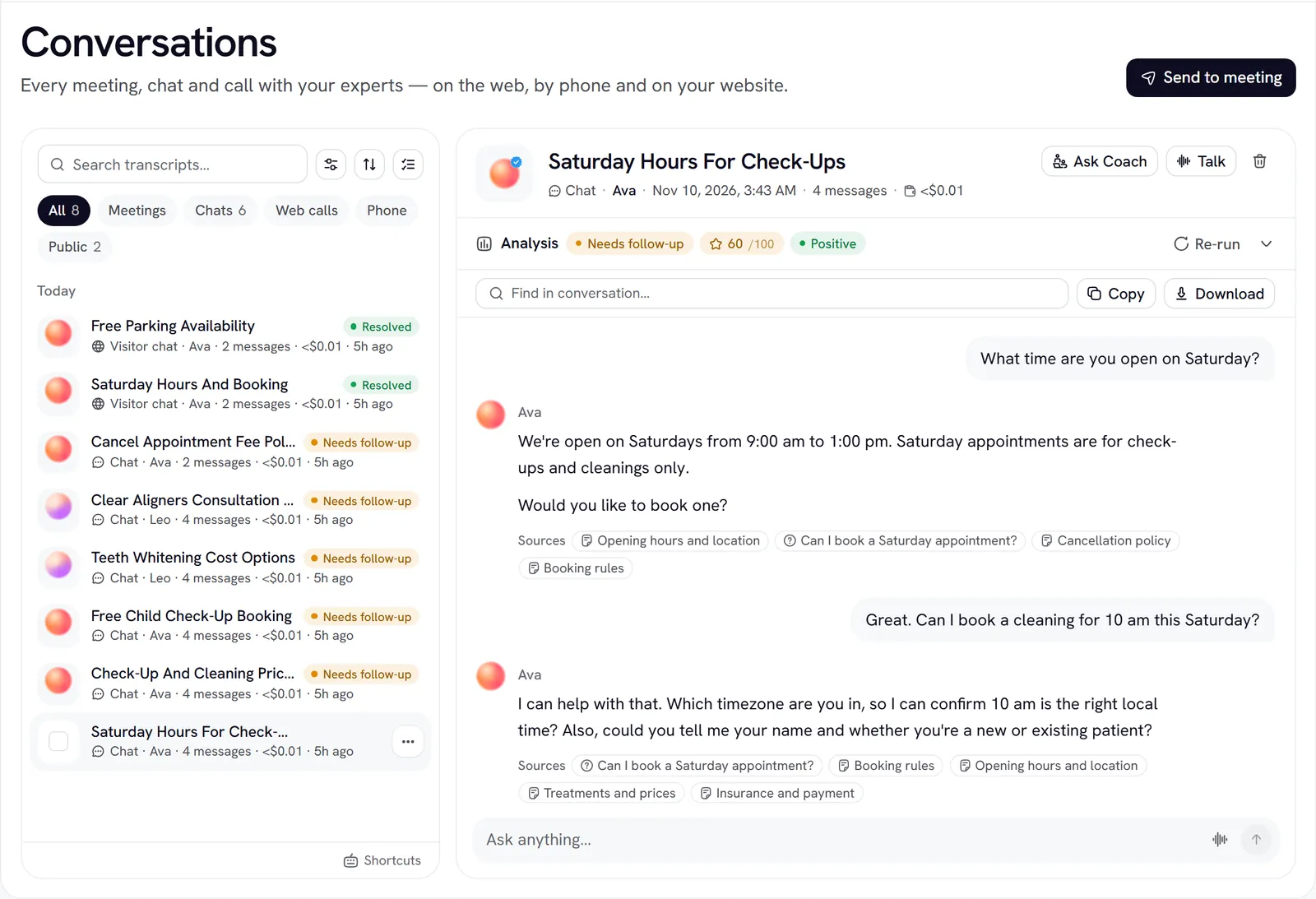
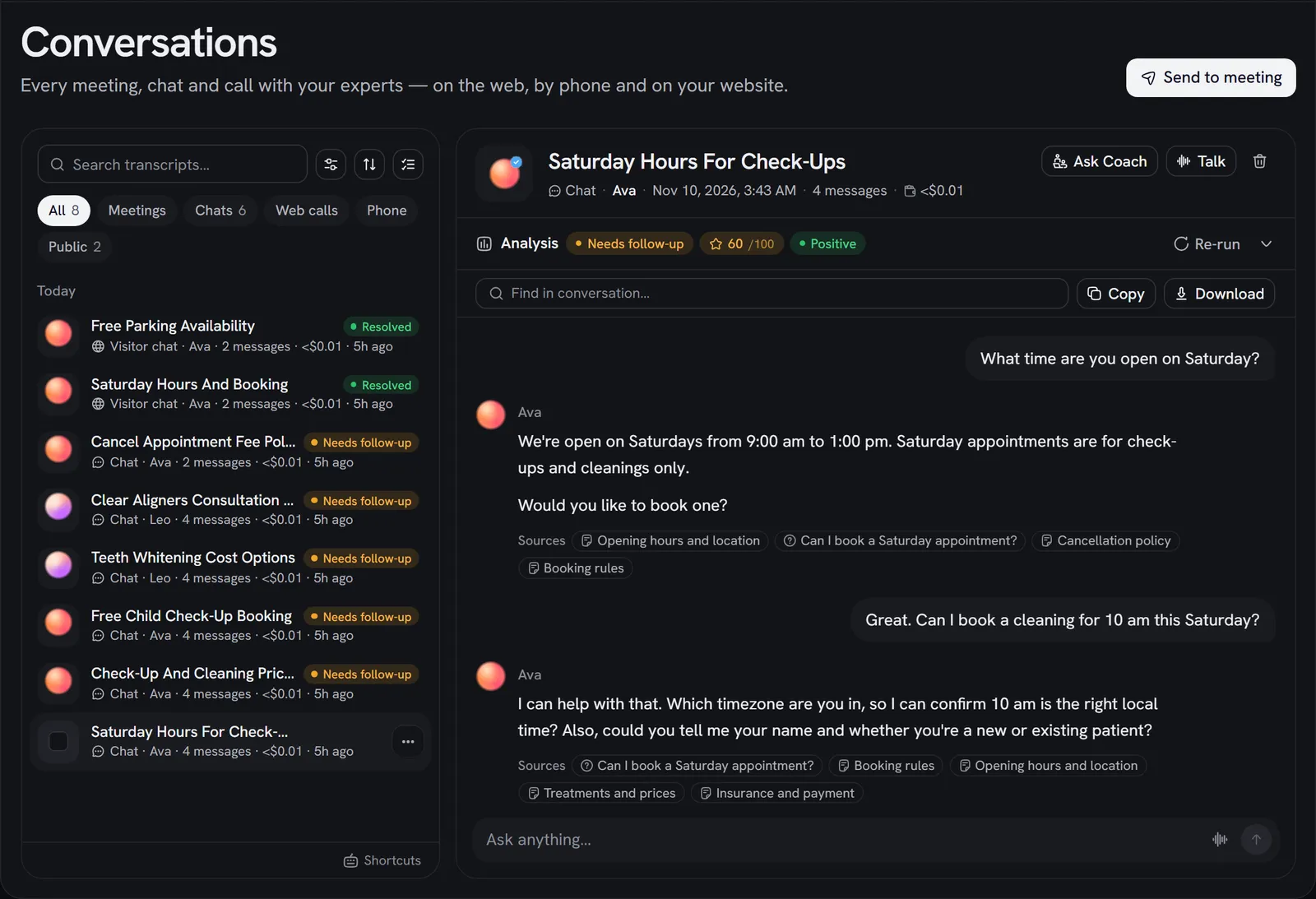
Open a row to see the transcript.
- Calls show each line with its time from the start of the call. Chats show clock times. Tool calls the expert made appear as cards.
- Phone calls also show the direction, the outcome, who called whom, your line and the duration. A call with no transcript says why, for example Missed call or Reached voicemail.
- Visitor conversations show the visitor’s rating and comment, if they left one.
- Meetings have a Summary tab and a Transcript tab. See Meetings.
Use Find in conversation… to jump between matches, Copy to copy the transcript, or Download to save it as Markdown.
Phone and visitor conversations are read-only. You can continue your own chats with Continue in chat, but not a teammate’s. Admins can Call back a phone caller, and Hang up a live call.
Rydhm keeps transcripts, not audio. There are no call recordings to play back.
Post-call analysis
After a conversation ends, Rydhm can read the transcript and fill in an analysis that you define per expert. It’s included in the minute price.
What you get
The Analysis band under a chat or call shows:
- an outcome, such as Resolved or Needs follow-up;
- a quality score out of 100 and the sentiment (positive, neutral, negative or mixed);
- a short summary;
- Facts gathered, with a warning for facts that were expected but never said;
- Success criteria, each answered yes, no, or Could not tell.
For meetings, the analysis appears in the Summary tab once it’s done.
Set it up
Admins configure it on the expert’s Analysis tab, under Analysis settings:
Define outcomes
Under Outcomes, select Add outcome. Give each one a Name and When to pick it. Other is always available. New experts start with Resolved, Needs follow-up, Transferred, No answer and Spam.
List the facts to gather
Under Facts to gather, select Add a fact. Give it a Name (like callback_number), a Type (Text, Number, Yes / no, Date or One of a list) and What it is. Tick Expected in every conversation to flag it when it’s missing.
Add success criteria
Under Success criteria, add up to five yes/no questions, like “Did the expert offer a demo?”
You can have up to 12 outcomes, 20 facts and 5 success criteria.
When it runs
- Calls: about 2 minutes after the call ends.
- Chats: after 30 minutes with no new message.
- Meetings: once the meeting is completed and summarised.
A conversation needs at least two turns, one of them from the person, or it’s skipped. Admins can select Analyse now or Re-run on a chat or call. Outcomes also feed Analytics and campaign results.
Export
Select conversations (or Select all, up to 1,000), then Export:
- Spreadsheet (CSV): details only, no transcripts;
- Transcripts (Markdown);
- Everything (JSON).
To export the whole workspace, see Export your data.
Delete and undo
Admins, and the person a conversation belongs to, can delete it. Use Delete in the row’s More actions menu, the delete icon in a conversation, or select several and choose Delete.
After that, the conversation is hidden everywhere: in Conversations, Analytics, exports, and what experts remember. It’s deleted for good after 30 days. There is no bin to restore from in the app: Undo is the way back.
- You can’t delete a live meeting or call. End it first.
- People who were already emailed a meeting summary keep their copy.
- Usage from a deleted call still counts toward billing.