

Knowledge library
The Knowledge page in the sidebar is your workspace’s knowledge library. It shows everything your experts know: shared folders, each expert’s own knowledge, and every document inside them. Use it to see what each expert reads, find a document, move it to where it belongs, and share knowledge across experts with folders.
Admins add, rename, move, refresh and delete. Members can browse, search, filter and open every document, read-only.
The library at a glance
The top level lists folders first, then one row per expert that has knowledge of its own. The top right shows your workspace’s knowledge storage against your plan.
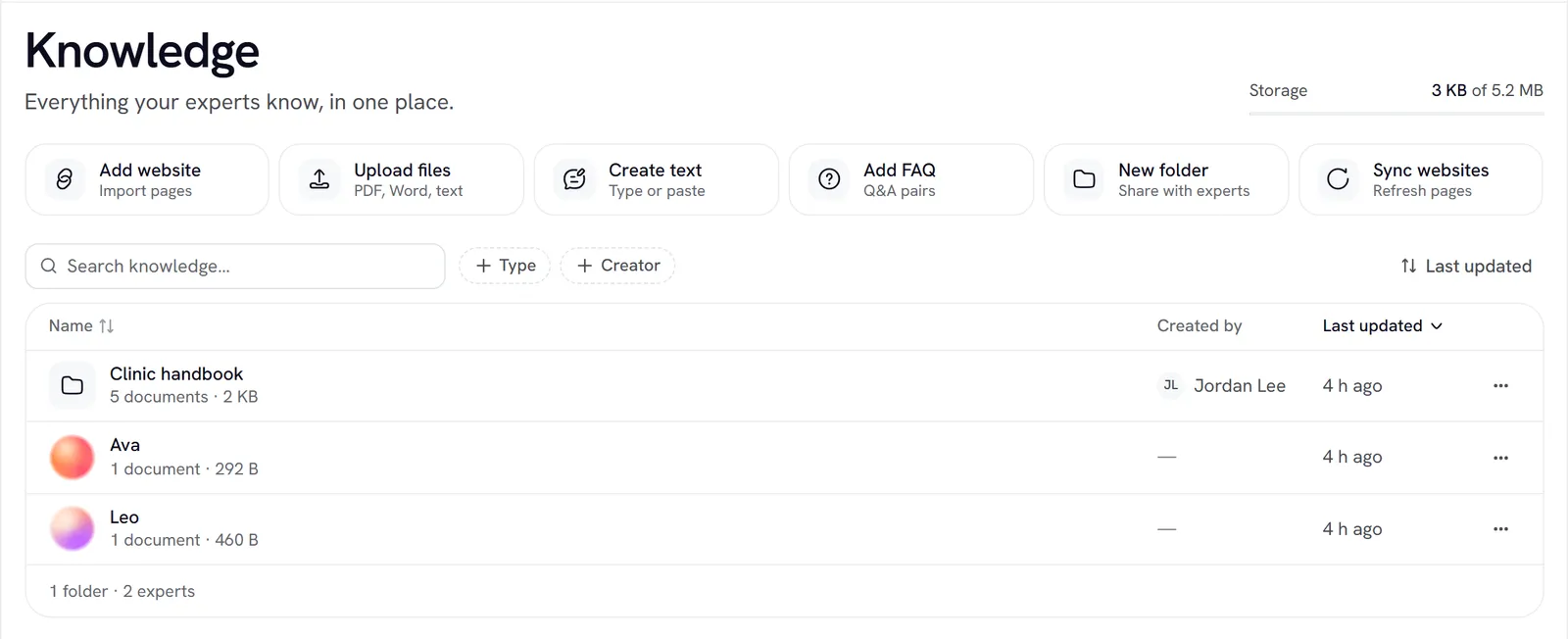
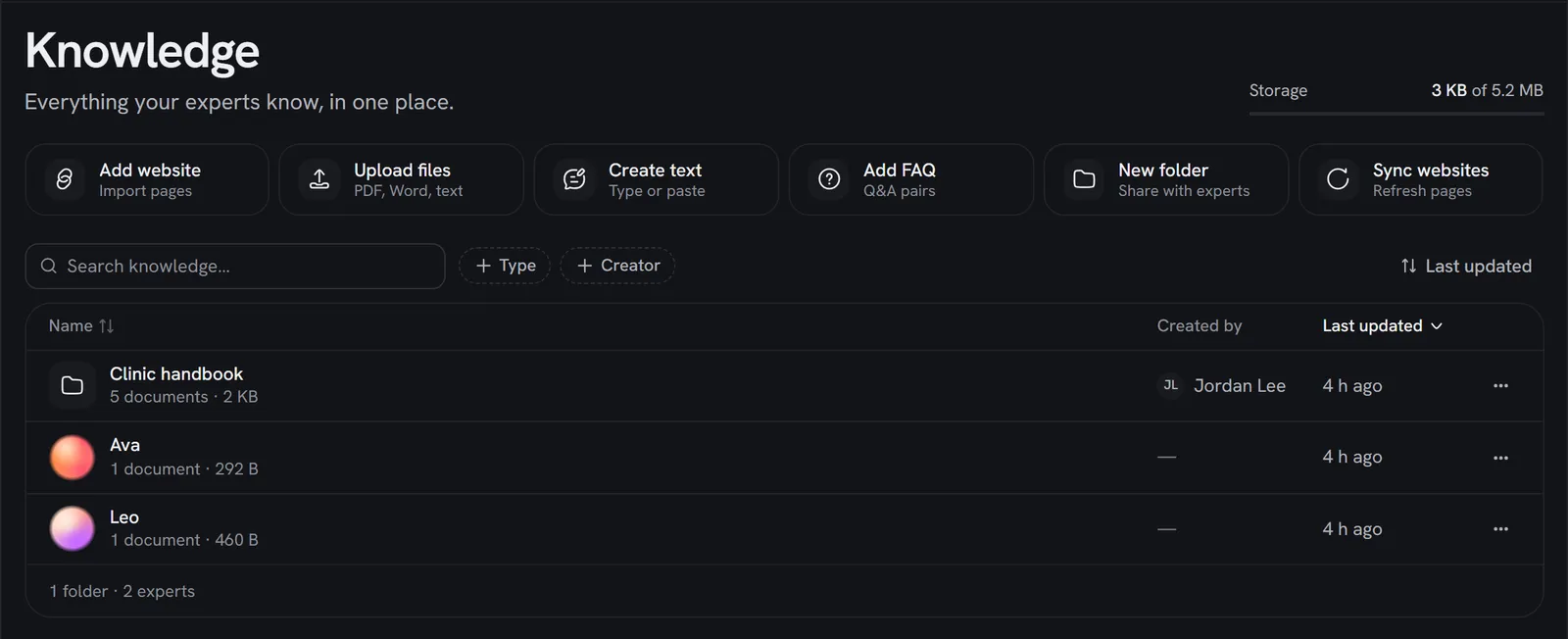
Open a folder or an expert to see its documents. The breadcrumb at the top takes you back to Knowledge. Each place has its own address, so you can bookmark or share a link to it.
- Inside a folder, Used by lists the experts that read it. Attach to experts changes that list; Folder actions (⋯) has Rename folder and Delete folder.
- Inside an expert, Also reads lists the folders attached to it, and Open name’s Knowledge tab takes you to the expert’s settings.
Add knowledge
Admins see a row of actions above the list:
At the top level, each add first asks where it goes in Add to: an existing Folder, a New folder, or an Expert. Inside a folder or an expert, it goes there.
Share knowledge across experts with a folder
Create the folder
At the top level, choose New folder. Give it a Name and, optionally, a Description.
You can also attach folders from the expert’s side: Knowledge tab → Shared knowledge → Choose collections. Folders and collections are the same thing.
Find a document
Use the toolbar above the list:
- Search knowledge… matches document names, file names and page addresses. It does not search the text inside documents; use Try a question on an expert for that.
- Type: File, Text, Web page or Questions. Pick more than one.
- Creator: Anyone, or the person who added it.
- Sort: Last updated, Name or Created, in either direction.
At the top level, searching or filtering shows matching documents from every folder and expert in one flat list, with a Location column. The list shows Name, Location, Status, Created by and Last updated.
Open a document
Choose a document to open its panel. It shows:
- where it Lives in, its Size, who created it and when;
- Used by: the experts that read it;
- What the expert reads: the text Rydhm extracted from it (the first 20,000 characters for a long document).
From the panel, admins can Rename, Move, Edit questions (for a question-and-answer set), Retry (for a document that failed) or Delete.
Move, rename and delete
- Move to… sends a document to another folder, a new folder or an expert. The experts that read the new place know it from their next conversation; the ones that read the old place stop.
- Rename changes a document’s display name, or a folder’s name.
- Delete removes a document for every expert that reads it. Tick several documents to delete them together.
- Delete folder deletes the folder and all its documents for every expert that reads it.
Deleting can’t be undone.
Gotchas
- A document lives in one place. It belongs to one folder or one expert, never both. To share an expert’s document, move it into a folder and attach the folder.
- A folder with no experts attached isn’t read by anyone. Its Used by line says No expert yet.
- Sync websites shares the website-import limit of 10 imports or refreshes an hour per workspace. Sites past it are left for later, and the confirmation says how many.
- API keys limited to specific experts only see those experts’ knowledge and the folders they use. See Scopes.