

Quickstart
This guide takes you from an empty workspace to an expert anyone can talk to through a link. You need to be a workspace admin: members can talk to experts but can’t create or publish them.
Describe your expert
Open Home or Experts in the sidebar and choose New expert → Describe it.
In What should your expert do?, say what the expert is for in plain words: who it serves, what it should answer, what it should do. For example: “A receptionist for a dental clinic that books appointments in English and Hindi, answers questions about treatments and prices, and sends urgent cases to the dentist.”
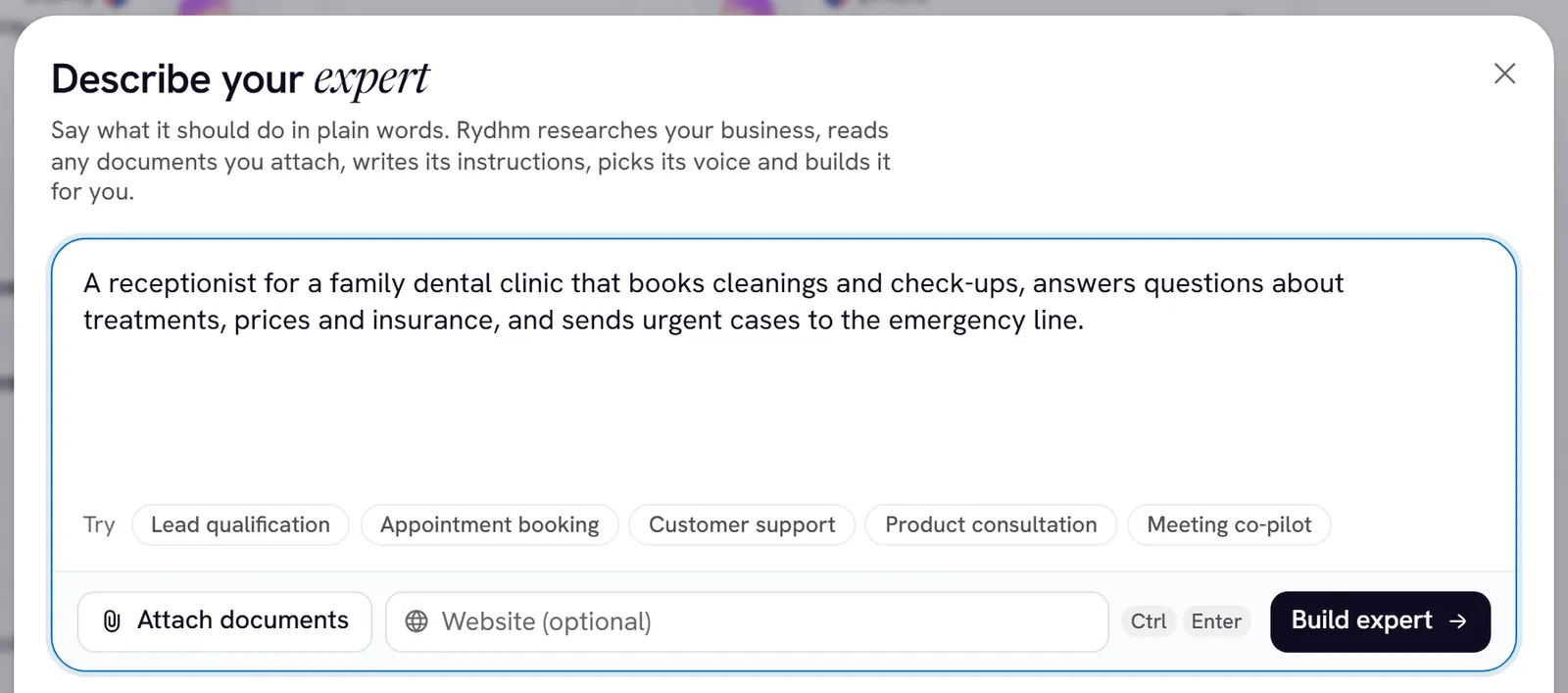
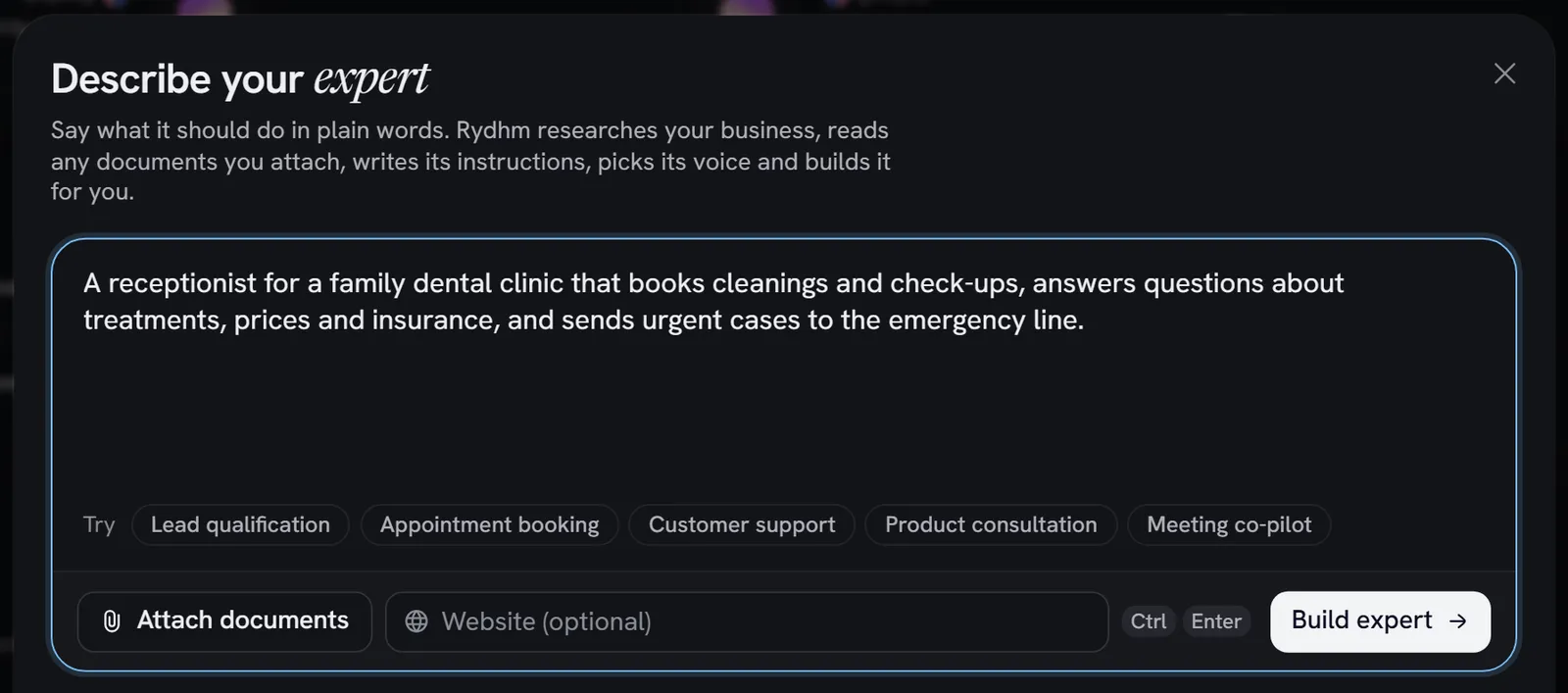
You can also:
- choose Attach documents to add price lists, FAQs or policies (PDF, Word, Markdown, text or CSV; up to 5 files, 8 MB in all);
- type your Website (optional), so Rydhm can research your business.
Choose Build expert. Rydhm reads your brief, researches on the web, writes the expert’s greeting and instructions, chooses a voice and languages, and saves what it learned as knowledge. A build usually takes about a minute. You can Stop it at any time; nothing is created until the last step.
When it finishes, choose Open settings.
Prefer a ready-made starting point? Choose New expert → Start from a template instead. There are templates for front desks, support, sales, collections, surveys, hiring and meetings. See Create an expert.
Check who it is and what it says
The expert opens on its Profile tab. Read three fields:
- Name and Description: how the expert is listed.
- First message: what it says when a conversation starts.
- Persona: its instructions. Write them the way you would brief a new colleague.
Change anything you like. The header shows Unsaved changes until you choose Save changes. See Persona and first message.
Give it your knowledge
Open the Knowledge tab and choose Add:
- Upload files: PDF, Word, Markdown, text or CSV, up to 8 MB each. You can also drop files on the list.
- Paste text: give it a name and paste the content.
- Add from a website: import pages from your site. See Website import.
- Add questions and answers: the questions you hear most, with your answers. See Questions and answers.
Each document shows Processing while it is read, then Ready. Under Try a question, type something a customer might ask and choose Search to see what the expert finds. Knowledge is saved as you add it: it doesn’t wait for Save changes.
Choose how it sounds
Open the Voice tab. Under Voice engine, keep Pipeline for now: it is the default and works everywhere, including meetings. Choose Change voice to pick a voice from the library, then Hear the first message to listen to the greeting in that voice.
See Voice engines to compare Pipeline, Gemini Live and GPT-Live.
Test it
Choose Test in the header. On a wide screen the Test panel sits beside the form; on a smaller one it slides over the page.
- Chat: type to the expert like a customer would.
- Voice: choose Start voice test and talk to it through your microphone.
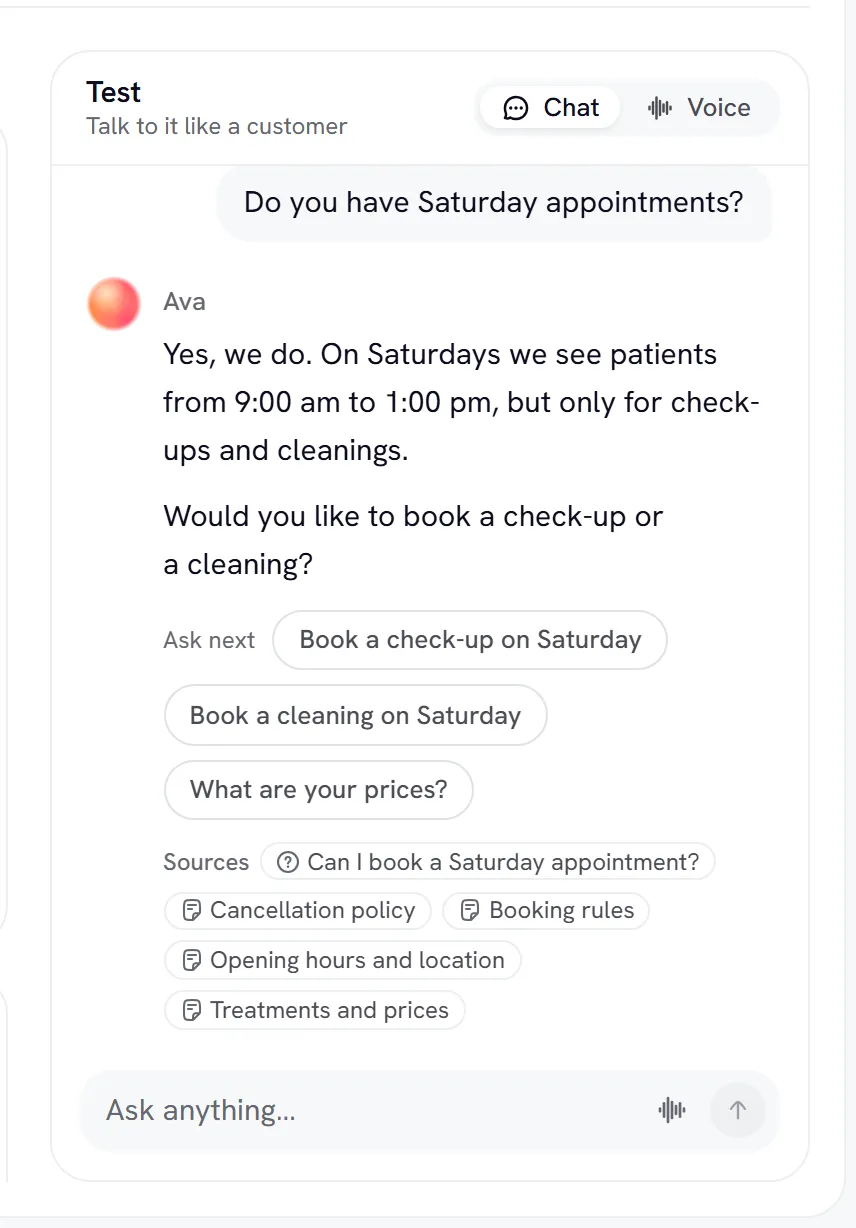
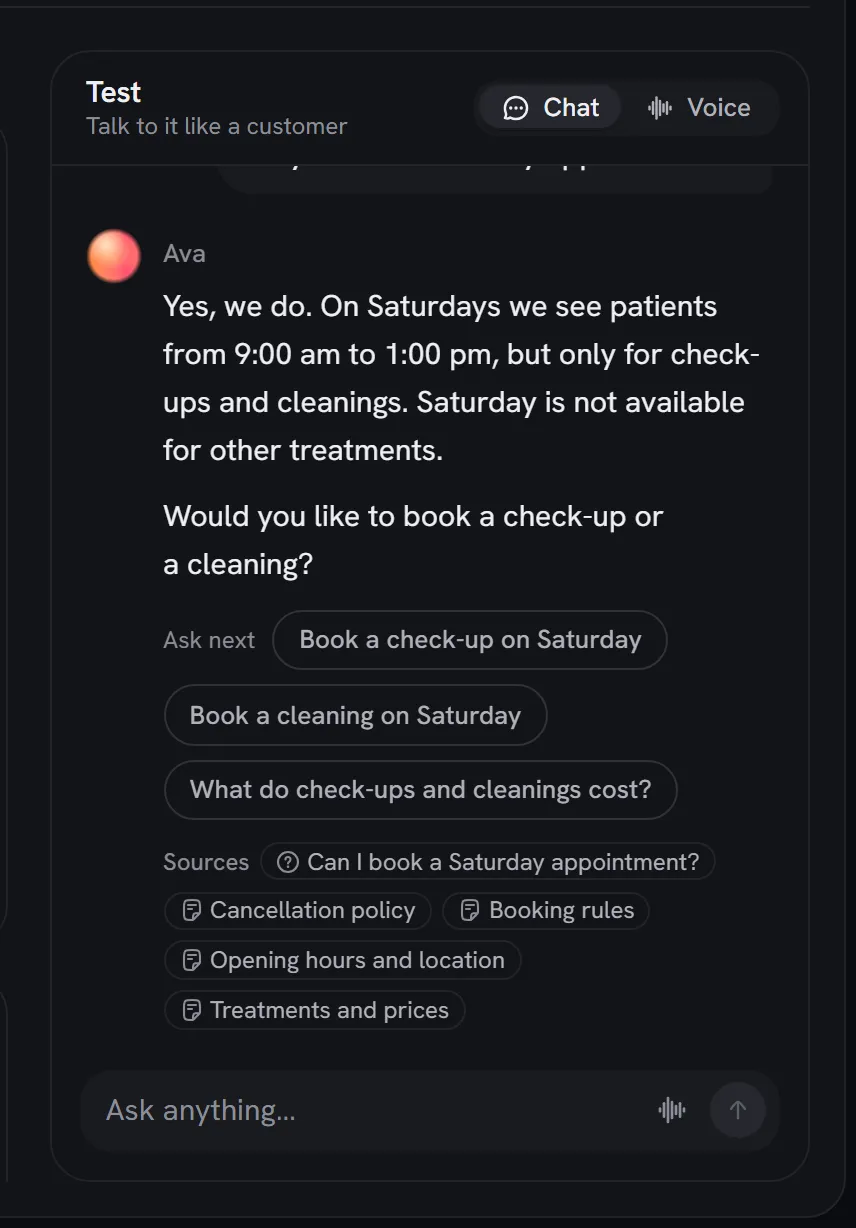
You don’t have to save first. While you have unsaved edits to the name, persona, first message or voice settings, the panel says Testing unsaved changes and runs on what is on your screen. Tool, widget and picture changes need a save first; the panel tells you which.
When you’re happy, choose Save changes.
Share it
Choose Publish in the header. In Publish and share, pick a visibility:
Choose Unlisted, then confirm with Make unlisted. Copy the Shareable link and open it in a private window to try it as a visitor would. The same dialog gives you an Embed on any site snippet for your website.
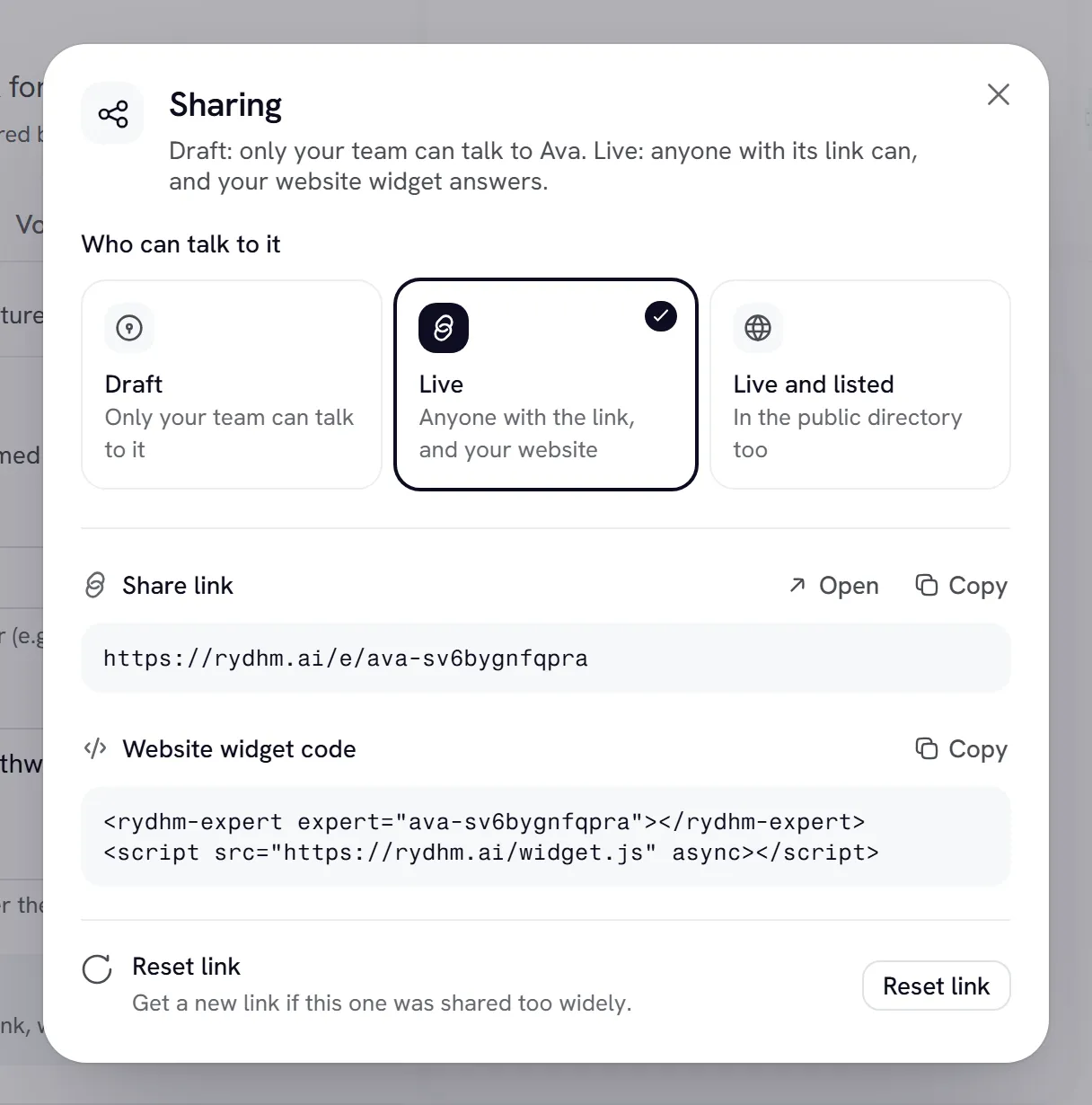
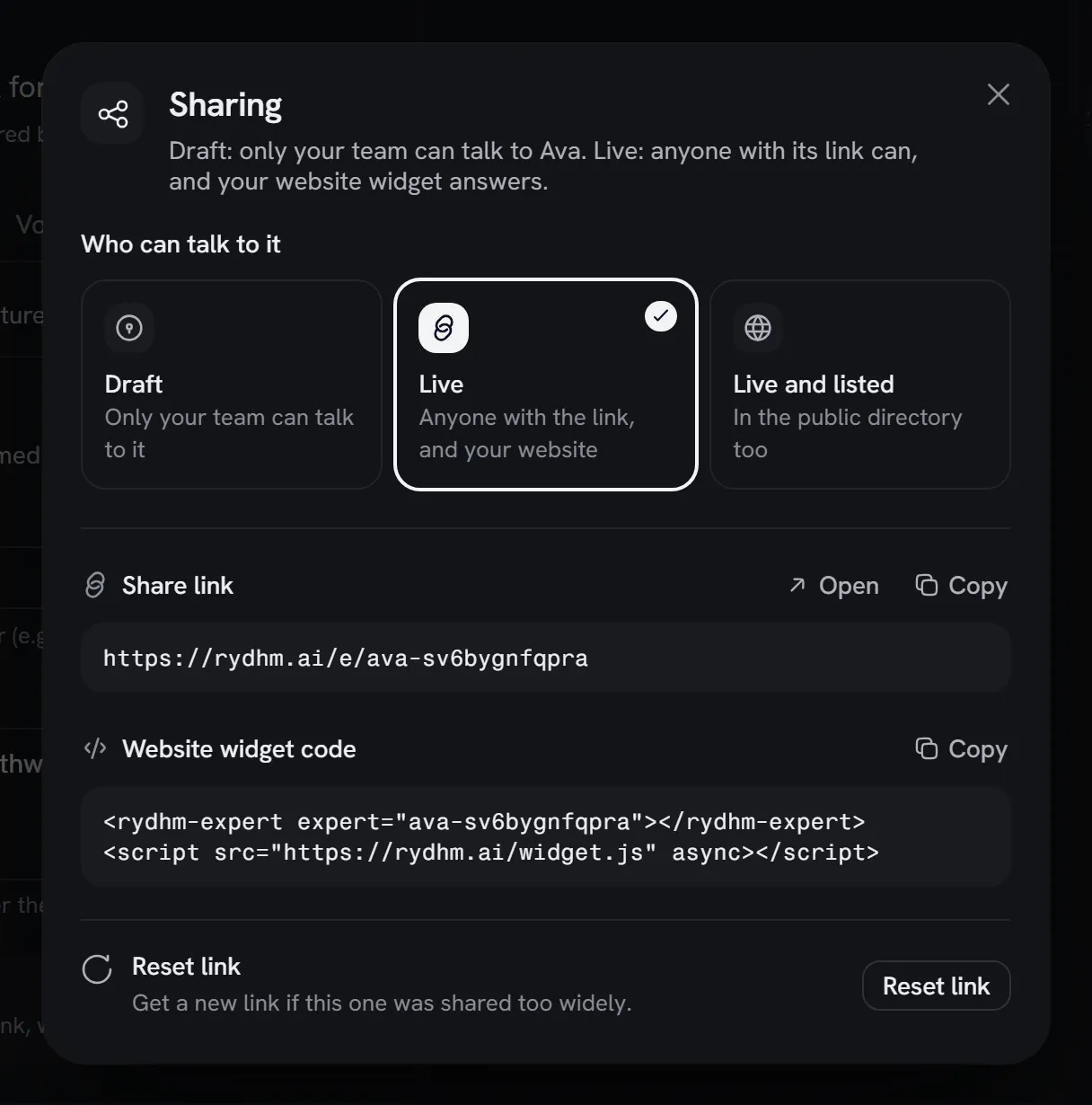
See Share links and Website widget.
Things to know
Publish and Send to meeting use the saved expert. If you have unsaved edits, Rydhm asks you to Save and continue first, so a visitor never gets an older persona by surprise.
- Visitors get a narrower toolset than your team. On a share link, the website widget and phone calls, an expert can use its knowledge, end or steer the call, and search the web if you turned that on. Calendar, email, your own API tools, outside tool servers and hand-offs to colleagues run only for signed-in members of your workspace. See Tools.
- Usage on a published expert is billed to your workspace. See Billing.
- Every save is a version. If a change goes wrong, open ⋯ → History and restore an earlier version. See Versions and testing.