

Voices
The Voices page in the sidebar is the voice library: every voice your experts can speak with, from Cartesia, Deepgram, Google and OpenAI. The page header shows how many voices and languages are available right now. Anyone in the workspace can browse and listen; giving an expert a voice is an admin’s change.
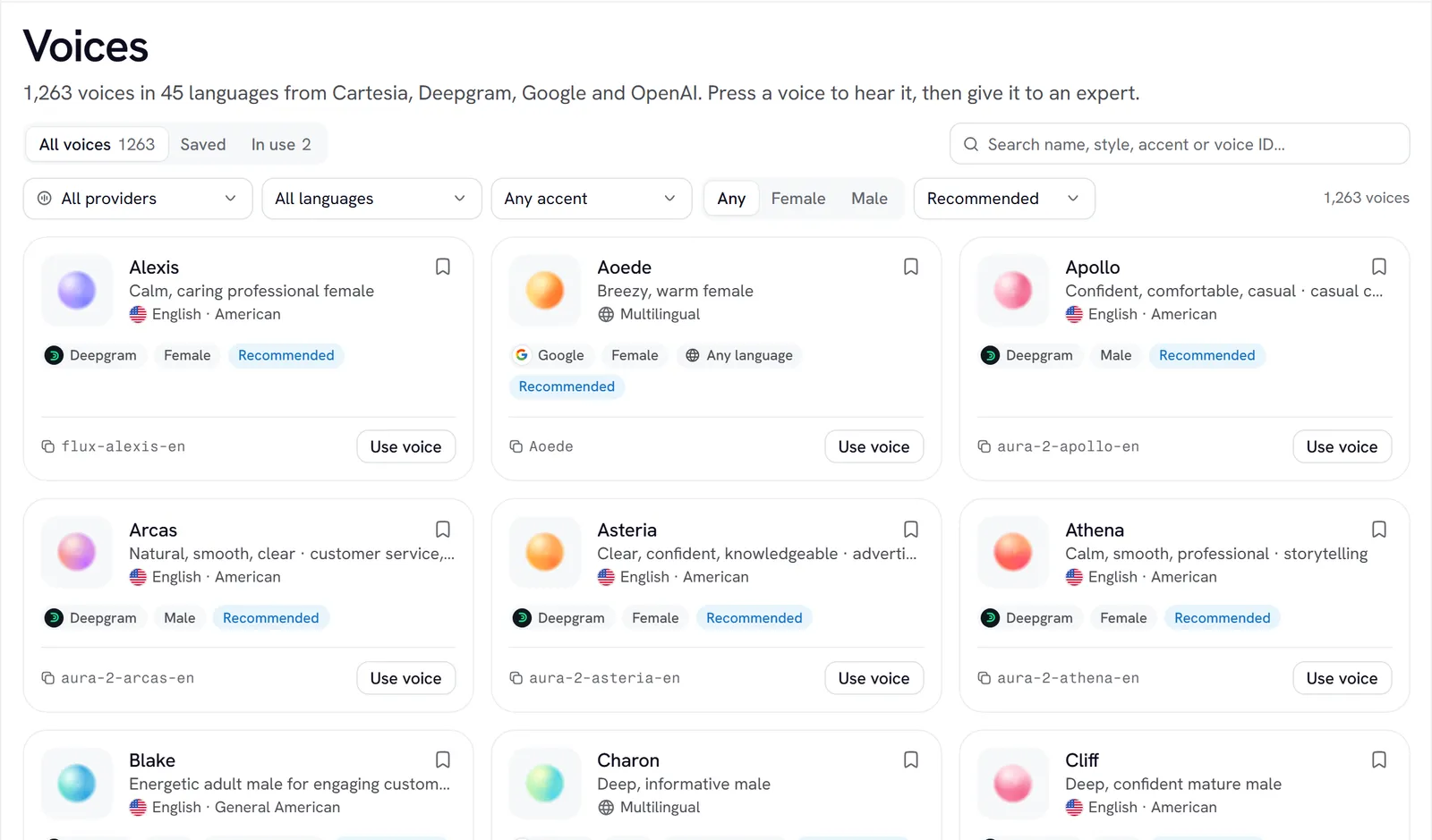
Find a voice
Narrow the list
Use the controls above the grid:
- All voices, Saved or In use (voices one of your experts speaks with).
- Search name, style, accent or voice ID…
- All providers, or one provider.
- All languages, or one language. With a language picked, Native speakers keeps only voices whose first language it is.
- Any accent, or one accent.
- Any, Female or Male.
- Sort by Recommended or Name A–Z.
Every dropdown shows how many voices each choice would leave. Clear resets the filters.
Each card shows the voice’s name, provider, language and accent, gender, how many other languages it speaks, its voice ID, and which of your experts already use it.
Give a voice to an expert
There are two ways, and both end in the same place.
From the Voices page
From the expert's Voice tab
- On a card, choose Use voice.
- In Use voice, pick the expert that should speak with it.
- Choose Give expert this voice.
The change is saved at once. A toast offers Open expert to see it on the Voice tab.
The voice decides the engine. From the Voices page, a Google voice moves an expert to Gemini Live and an OpenAI voice moves it to GPT-Live; a Cartesia or Deepgram voice moves it to the pipeline. The dialog warns you before it saves. The expert’s other settings are kept, so switching back restores them.
A GPT-Live expert speaks with two voices: its own in one-on-one conversations, and a pipeline voice in meetings, set under In meetings → Meeting voice. Both count as In use.
Make the voice sound right
The Voice controls section on the Voice tab tunes how the chosen voice delivers each line:
- Speed: from slower to faster (0.8× to 1.2×). Cartesia nudges its pace, Deepgram follows it exactly, and Gemini Live and GPT-Live are asked to.
- Tone: Neutral, Calm, Warm or Upbeat. Exact on Cartesia voices in English; other engines follow it loosely. Not set, the voice keeps its own delivery.
- Pronunciations: words the voice gets wrong, and how to say them. Choose Add a word, then fill Term and Say it like, spelled the way you’d say it (for example Nginx → engine X). Tick Match case to match only that exact capitalization. Only whole words match. Up to 100 words.
- Backup voice: speaks only if the main voice’s provider fails before a reply starts. It comes from the other provider, so one outage can’t silence both. Not available on Gemini Live.
- Deep thinker: for questions a quick answer could get wrong, the voice model first asks a stronger model (GPT-6.1 Terra or Claude Sonnet 5). Those answers take 2–4 s longer. Off by default; not offered on GPT-Live.
- Thinking sound: a soft keyboard sound while a tool keeps the caller waiting for more than a second. Calls only; meetings stay quiet.
Choose Hear the first message to check the result. The preview applies your speed, tone and pronunciations.
Gotchas
- A short list may be a provider outage. If a provider’s full catalog can’t be loaded, its recommended voices stand in and the page says so.
- Some voices are made for one language. Check the card’s language line before giving a voice to an expert that speaks something else. See Languages.
- Gemini and GPT-Live previews take a few seconds to start.