

Public links
Every published expert gets a public page with its own link, like rydhm.ai/e/acme-support-k7m2p9qx4hdz. Anyone with the link can talk to the expert by voice or chat with it. Send it by email, put it in a QR code, or link to it from your site.
Only admins and the owner can publish an expert or change its link. See Members and roles.
Publish an expert
Open Publish
Open the expert and select Publish in the header. If you have unsaved edits, Rydhm asks you to save first, because publishing shares the saved expert.
Choose who can find it
In Publish and share, choose:
- Unlisted: anyone with the link. The page isn’t listed anywhere, and search engines are asked not to index it.
- Public: anyone with the link, and it’s also listed in the Rydhm expert directory.
- Private: only your workspace. The link, website embeds and API access stop working at once.
Each change asks you to confirm.
Making an expert Private keeps its link. Publishing it again brings the same link back.
Links can’t be guessed
A link is the expert’s name followed by a 12-character random code, for example acme-support-k7m2p9qx4hdz. Nobody can find an unlisted expert by guessing its name.
Rydhm also slows down anyone trying links at random: after 30 wrong links from one address in 10 minutes, every public link answers “Too many requests. Try again later.” to that address until the 10 minutes are up.
Reset a link
If a link was shared too widely, give the expert a new one.
The old link stops working immediately, for everyone who has it, including the website widget on any site that uses it.
Experts published before links had a random code show a note: “This link is the expert’s name, so it can be guessed. Reset it for a secure one.” Reset those.
What visitors see
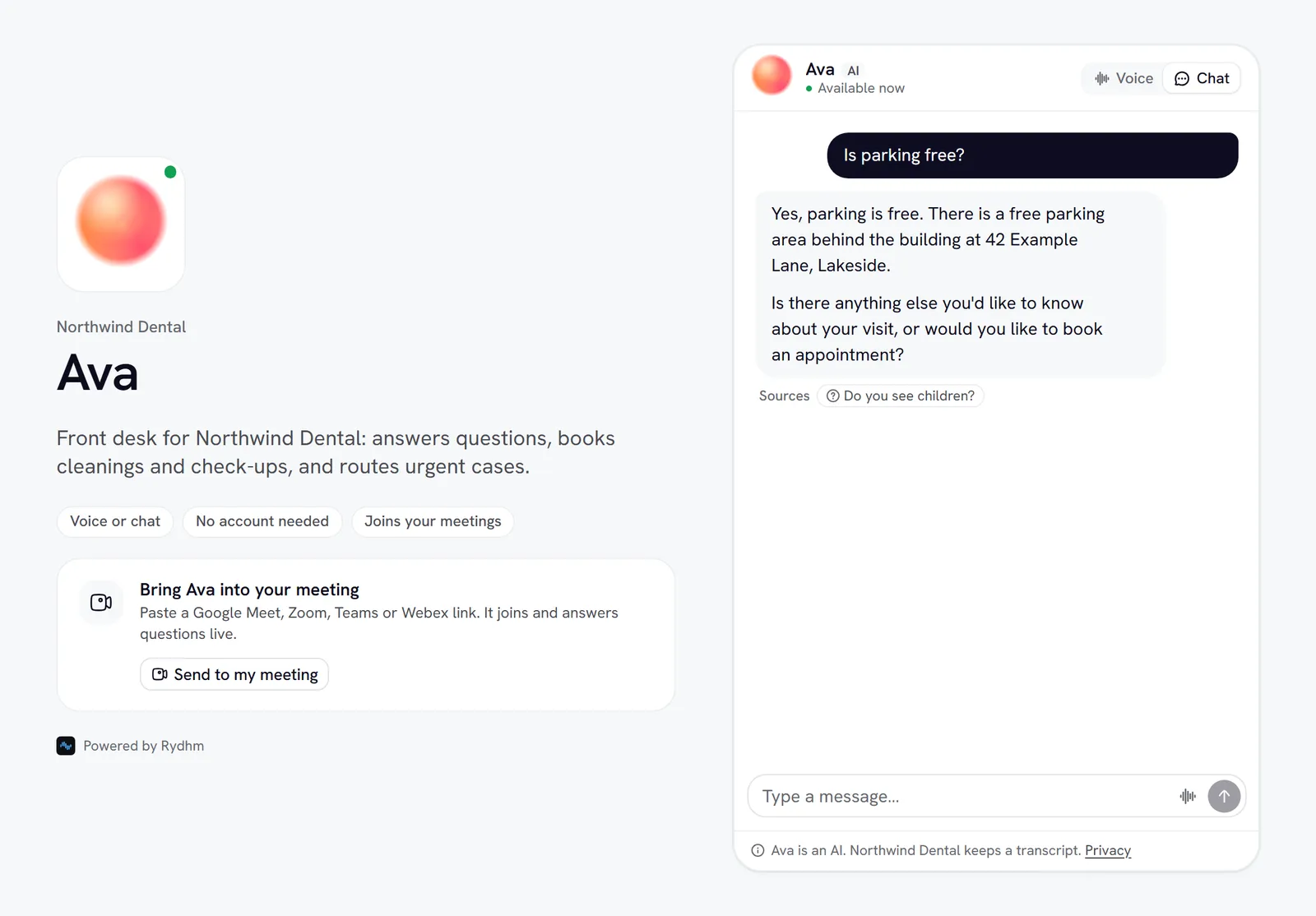
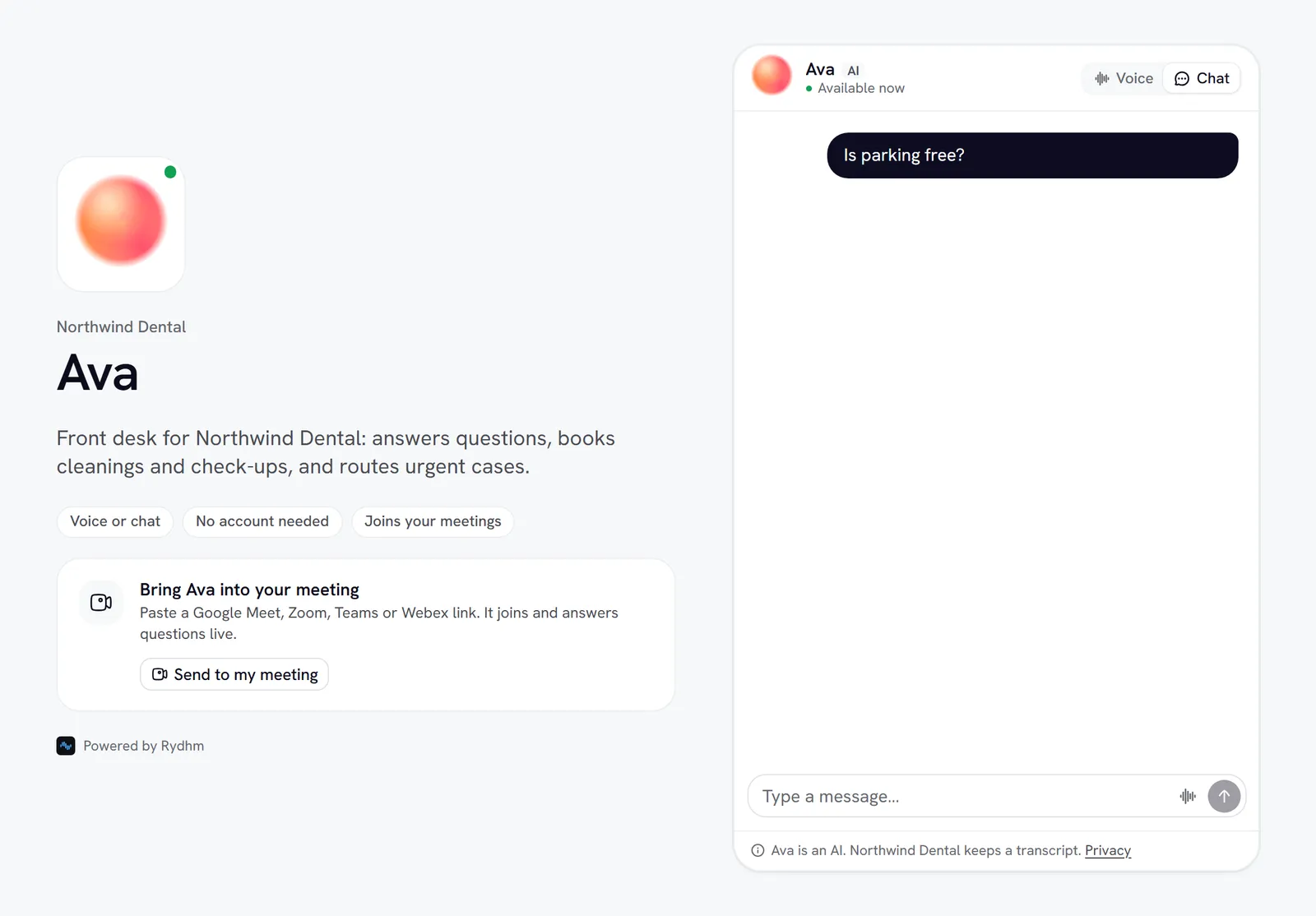
The public page shows the expert’s picture, name, description and your workspace’s name, with what it can do: chat, voice calls, how many languages, whether it answers the phone or joins meetings. Below that is the conversation:
- Voice: select Start call and allow the microphone. If the expert has both voice and chat, a switch lets visitors choose.
- Chat: type a message and press Enter. See Chat.
- Prefer the phone?: if the expert has an active phone number, visitors can call it.
- Send to my meeting: if you allow it, visitors can invite the expert into their own meeting. See Meetings.
The footer tells visitors that the expert is an AI and that your business keeps a transcript. Visitors don’t need an account. Their conversations appear in Conversations under Public.
You can pass values for the expert’s {{variables}} in the link, for example rydhm.ai/e/acme-support-k7m2p9qx4hdz?plan=Pro. Values are cut to 200 characters.
A link that doesn’t exist, or an expert that was made private, shows a “Page not found” page.
The language picker
If the expert speaks two or more languages, the conversation card shows a language menu (a globe). Visitors pick a language from the list, shown in English and in its own script.
- Chat switches to the new language straight away.
- Voice uses it from the next call.
- The choice is remembered for that link in the visitor’s browser.
- To open the page in a language, add
?lang=with a two-letter code, like?lang=hi. This wins over the remembered choice.
To set which languages an expert speaks, see Languages.
Visitor feedback
Visitors can rate what the expert said:
- In chat: Helpful or Not helpful on each reply. A thumbs down asks “What could have been better? (optional)”.
- After a call: “How was the call?”, once per call.
Comments are up to 300 characters. Rating again replaces the earlier rating.
You see feedback in two places: the conversation itself shows a Visitor rated line, and the Visitor feedback card in Analytics shows the helpful share, a split by expert, and the latest comments.
Limits
To protect your credits, public pages are rate limited per visitor (by network address) and per expert:
A visitor over a limit sees: “Lots of people are talking to this expert right now. Please try again in a few minutes.”
Public calls count toward your plan’s calls at once, and use credits like any call or chat. See Billing. Visitor messages are also checked for abuse and prompt injection. See Chat.