

Tools
Let an expert look things up and take actions mid-conversation, with confirmation where it matters.
A tool is something an expert can do during a call or chat: check a calendar, send an email, search the web, or call your own API. You give tools to an expert on its Tools tab; changes there apply at once, with an Undo, and don’t wait for Save changes. The Tools page in the sidebar (admins only) lists every tool in the workspace, with its health.
Add a tool
- Open the expert, then Tools, and choose Add tool.
- Pick from Built-in or Your tools (the workspace’s own), or choose Create a new tool to connect your own API.
- Choose the tool’s row to customize it.
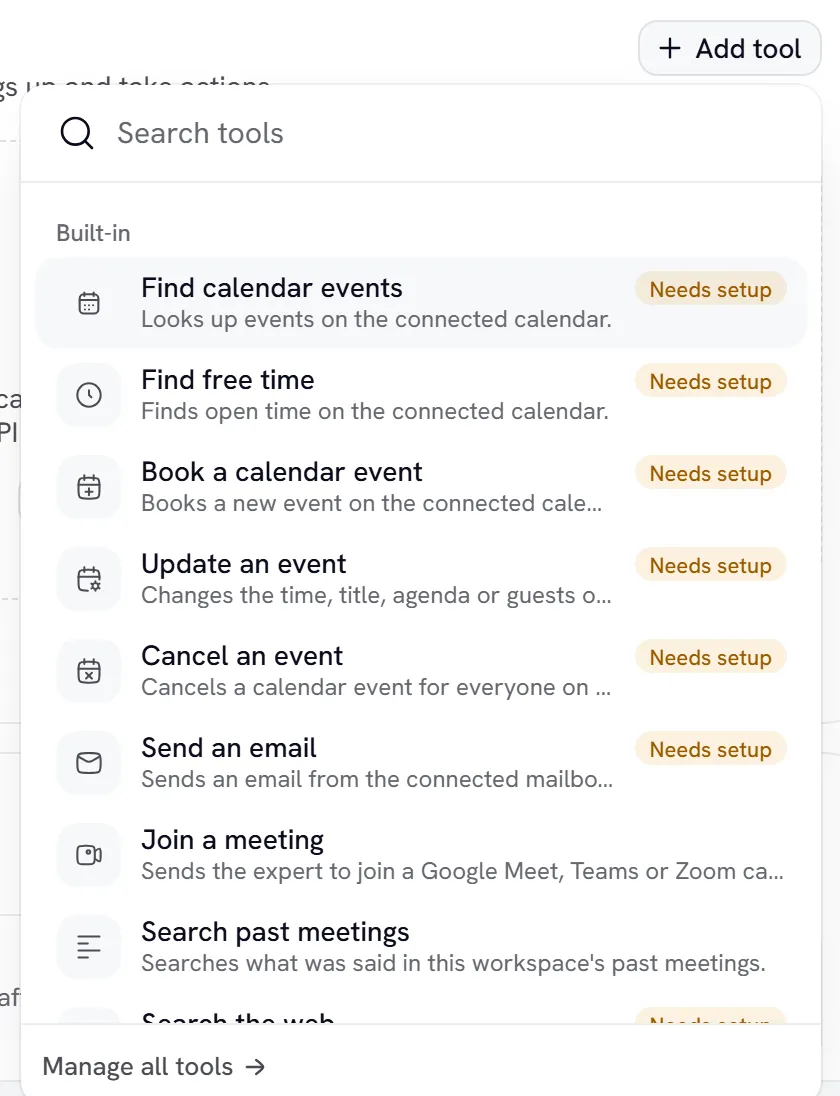
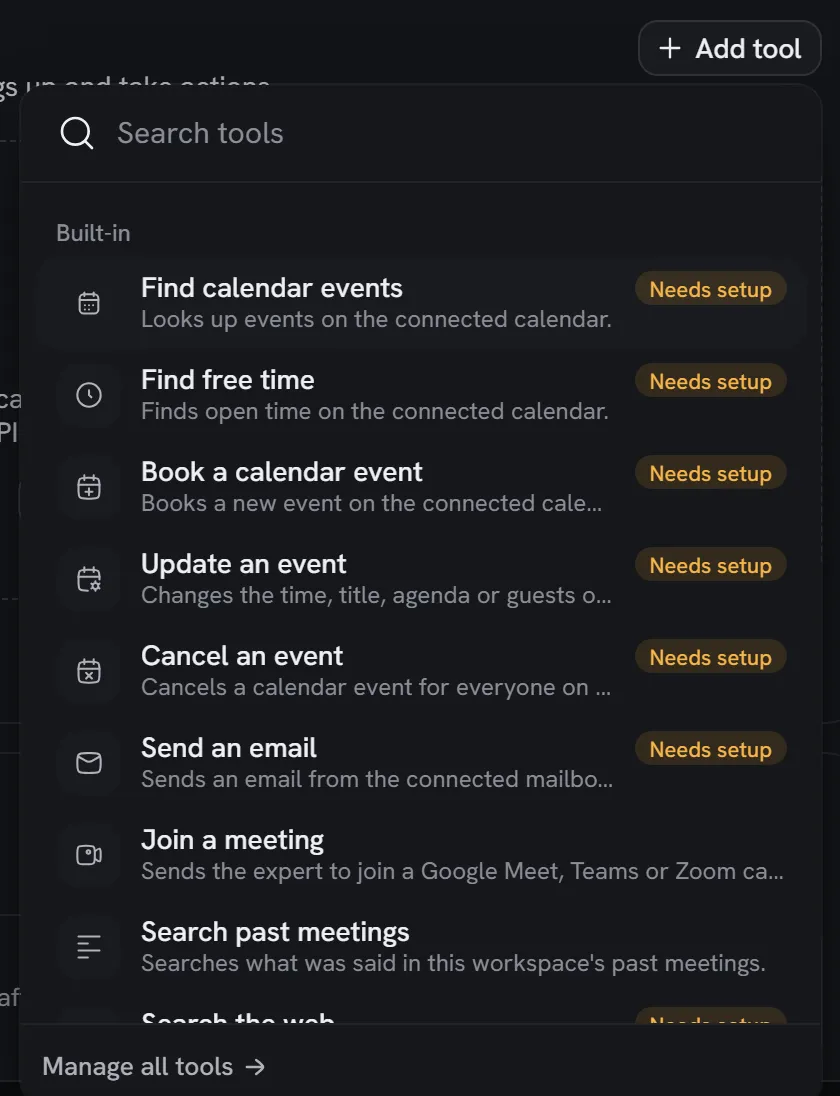
Each row shows this week’s calls and success rate. Needs setup links to the fix.
Built-in actions
The calendar tools need Google Calendar and Send an email needs Gmail, connected in Settings → Integrations. Until then they show Needs setup.
Search the web has a Where it searches setting: The whole web, Only these sites or All except, with up to 20 websites. An expert makes at most 2 searches per question and 8 per conversation, and each workspace has a daily limit. Web search is on paid plans, and each search is billed. See Billing.
Conversation control
Three tools steer the conversation itself, each with a switch and Customize:
- End conversation (on by default): hangs up after a goodbye, or when everything has been handled.
- Stay silent: in meetings, stays quiet when people talk to each other rather than to the expert. Leave it off for one-on-one calls.
- See who is in the meeting: checks who is present before addressing someone by name.
Also available automatically lists tools the expert gets by situation, with no switch: posting in a meeting’s chat, emailing the meeting summary, and handing a call to a colleague and back when it has specialists.
Customize a tool
A built-in tool’s settings panel has:
- Expert can use it: on or off. Applies straight away.
- Ask first: the expert reads back what it’s about to do and waits for a yes. In chat, it shows an approval card.
- Can’t be interrupted: the caller can’t cut in while it runs. On End conversation, the expert says its goodbye in full.
- Extra guidance: added after the built-in instructions, for this expert only, such as “Only book in the afternoon.”
- Rewrite instructions: replaces the built-in instructions entirely. Rarely needed.
- How it went for expert: calls, success rate and average time over the last 7 days.
The panel saves with its own Save.
Your own tools
A custom tool calls an HTTPS endpoint of yours. Create one from Add tool → Create a new tool, or on the Tools page with Connect your API, Paste a cURL command, Start from a template or Describe it.
Name and purpose
Name, Function name (lower-case letters, numbers and underscores) and When should experts use it?, which the expert reads to decide when to call it.
Request
Method and address, with {name} for a value in the path, such as https://api.example.com/orders/{order_id}. Each input is Text, Number or Yes or no, filled by Expert works it out or Always this value.
Authentication
None, Bearer token, Basic or API key, plus headers. Tick Secret to hide a header’s value. Saved secrets are never shown again.
Behaviour
Looks something up or Takes an action. An action can Ask first; either can be Can’t be interrupted.
What the expert says and sees
Spoken lines for When it starts, If it’s taking a while and If it fails. Give up after sets the timeout, 1 to 20 seconds (calls and meetings stop waiting after 15). What the expert sees is the whole response or only the fields you pick.
On the Tools page, Try it runs the real request with your current setup, saved or not.
Outside tool servers (MCP)
Give this expert extra abilities plugs in MCP servers. Choose Add server and fill Label, Server URL, Transport and, if needed, Access token. Choose Test connection, tick the tools the expert may use (up to 12 per server), then Save in that section. A tool the server marks can change data is confirmed with the caller first.
Who can use which tools
Everything else acts on your workspace, so it never runs for an anonymous caller.
Gotchas
- “Old editor” tools come from an earlier version of this tab. Edit them on the Tools page.
- Exports leave out secret header values. See Create an expert.