

Website widget
The website widget is a bubble in the corner of your site. Visitors open it to talk to your expert by voice or by text, with no account. It uses the same conversation panel as your expert’s public page.
Only admins and the owner can publish an expert, style its widget and set where it may appear. See Members and roles.
Add the widget to your site
Publish the expert
Open the expert and select Publish in the header. In Publish and share, choose Unlisted (anyone with the link) or Public (also listed in the directory). The widget only works for a published expert.
Copy the snippet
In the same dialog, copy the code under Embed on any site. You can reopen it any time from the expert’s Share tab, under Public page.
Paste it into your site
Put the snippet in your page’s HTML, anywhere in the body. The bubble appears in the bottom-right corner.
Limit where it can appear
On the Share tab, add your site under Allowed websites. See Allowed websites.
The snippet looks like this. Copy yours from the dialog, so the expert’s link is right:
When the expert’s instructions use variables, the dialog’s snippet already includes a variables example. For more on embedding, see Embed.
How it behaves
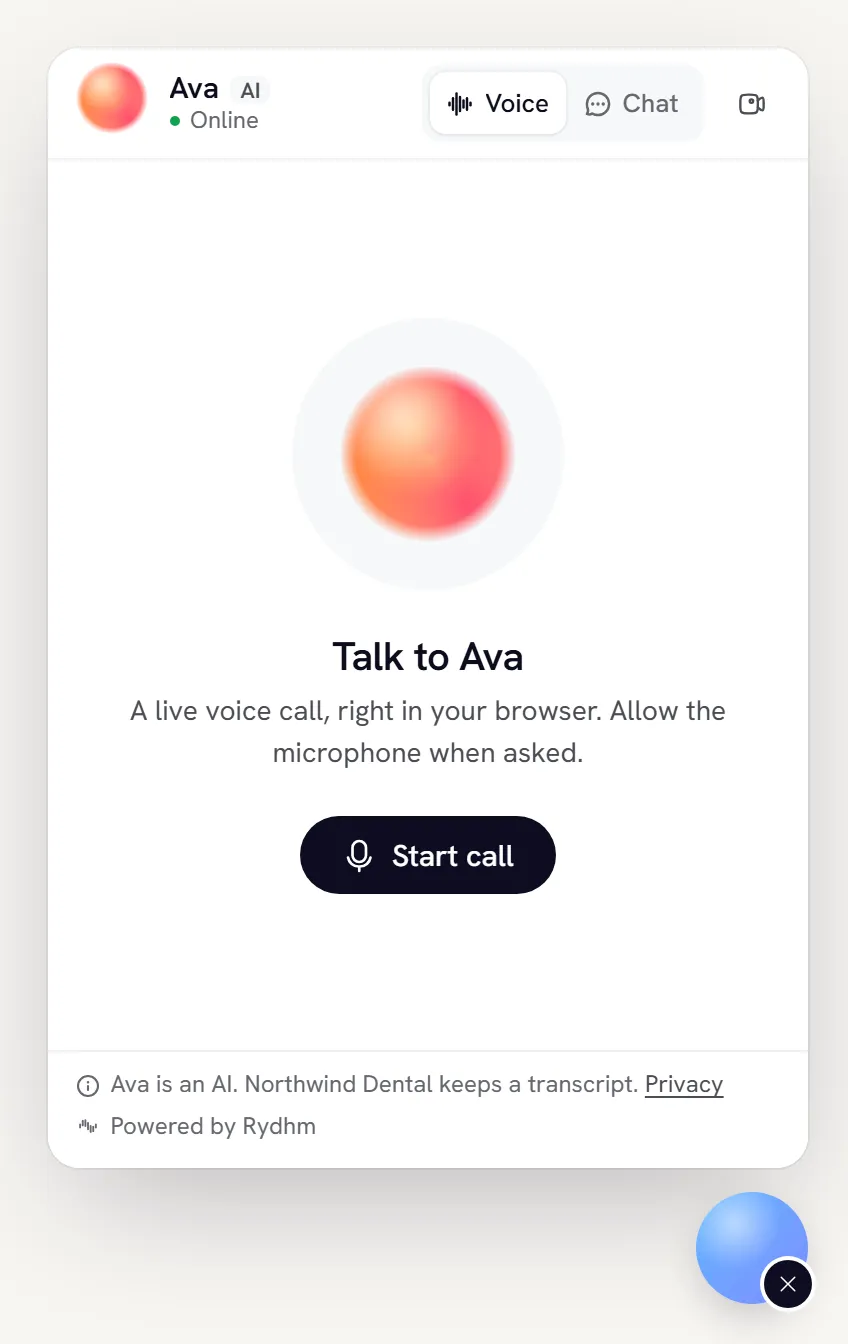
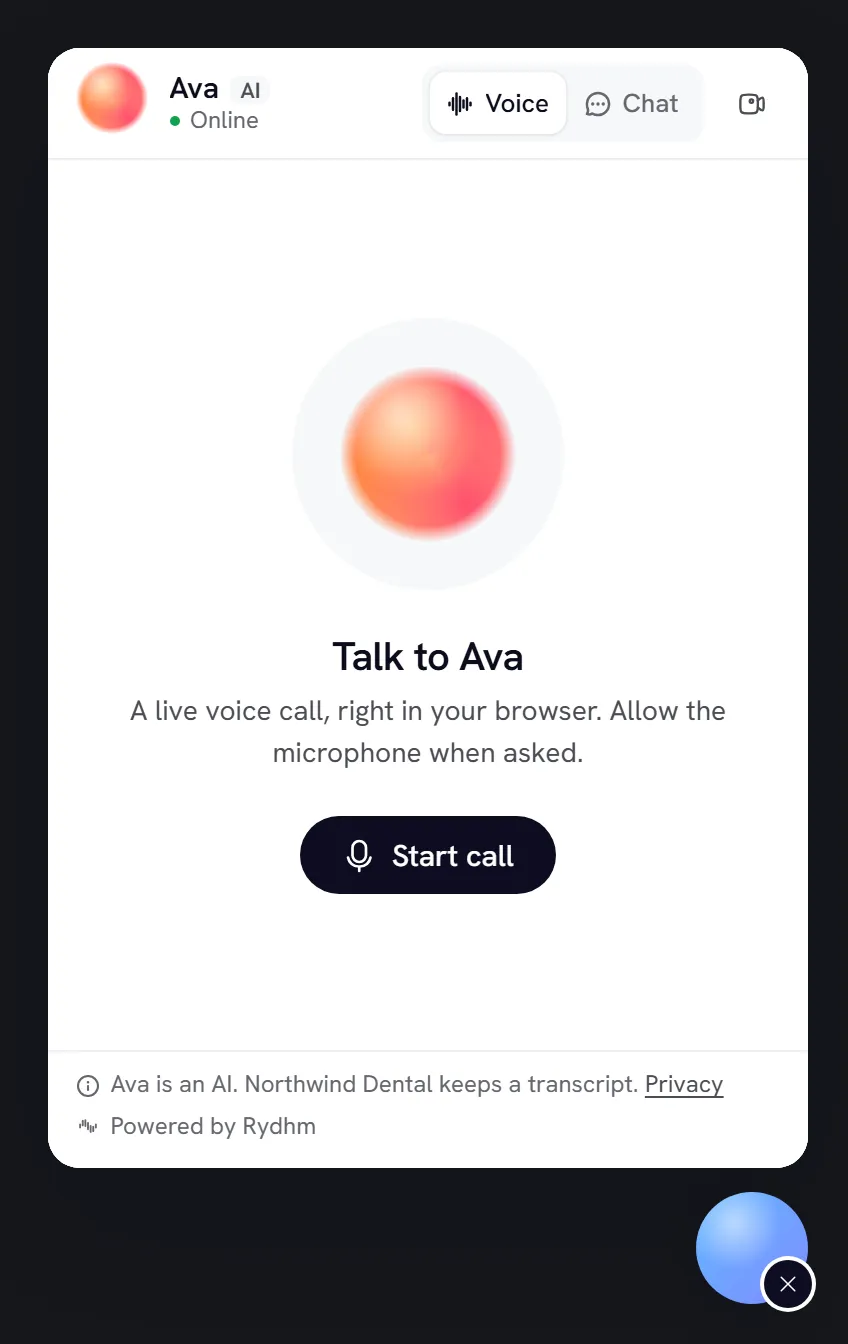
- The panel loads only when a visitor first opens the bubble. Until then there’s no microphone prompt and no session.
- Visitors can talk or type, depending on the expert. A live voice call asks for the microphone.
- Closing the panel, or pressing Escape, ends a live call.
- A visitor can rate replies and calls, and comment. See Public links.
- If the expert isn’t published or the site isn’t allowed, the bubble doesn’t appear at all. Visitors see no error.
Widget visitors are anonymous. The expert answers from its knowledge, and can search the web if you turned that on, but your workspace’s other tools never run for them.
Style the widget
On the expert’s Share tab, under Website widget:
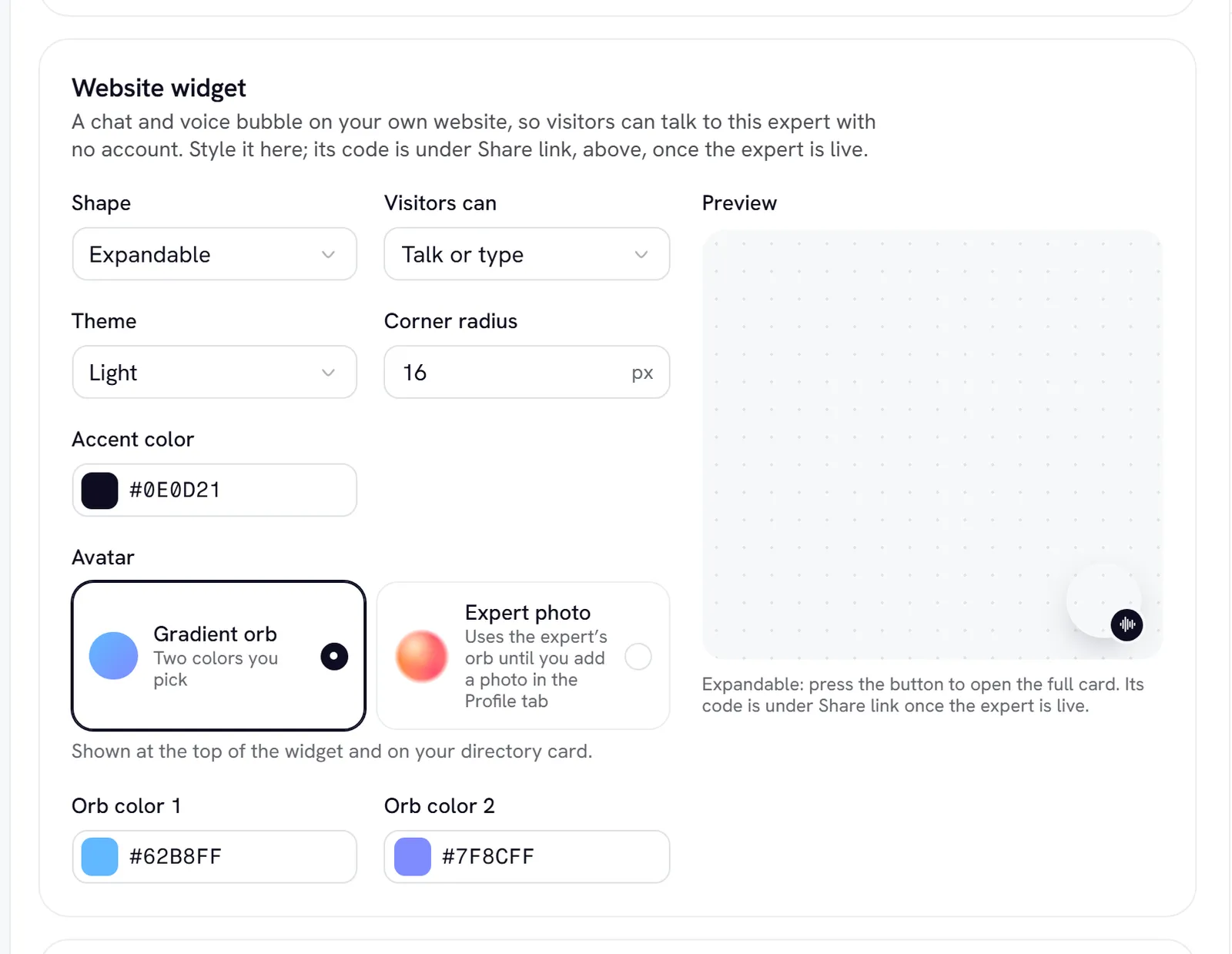
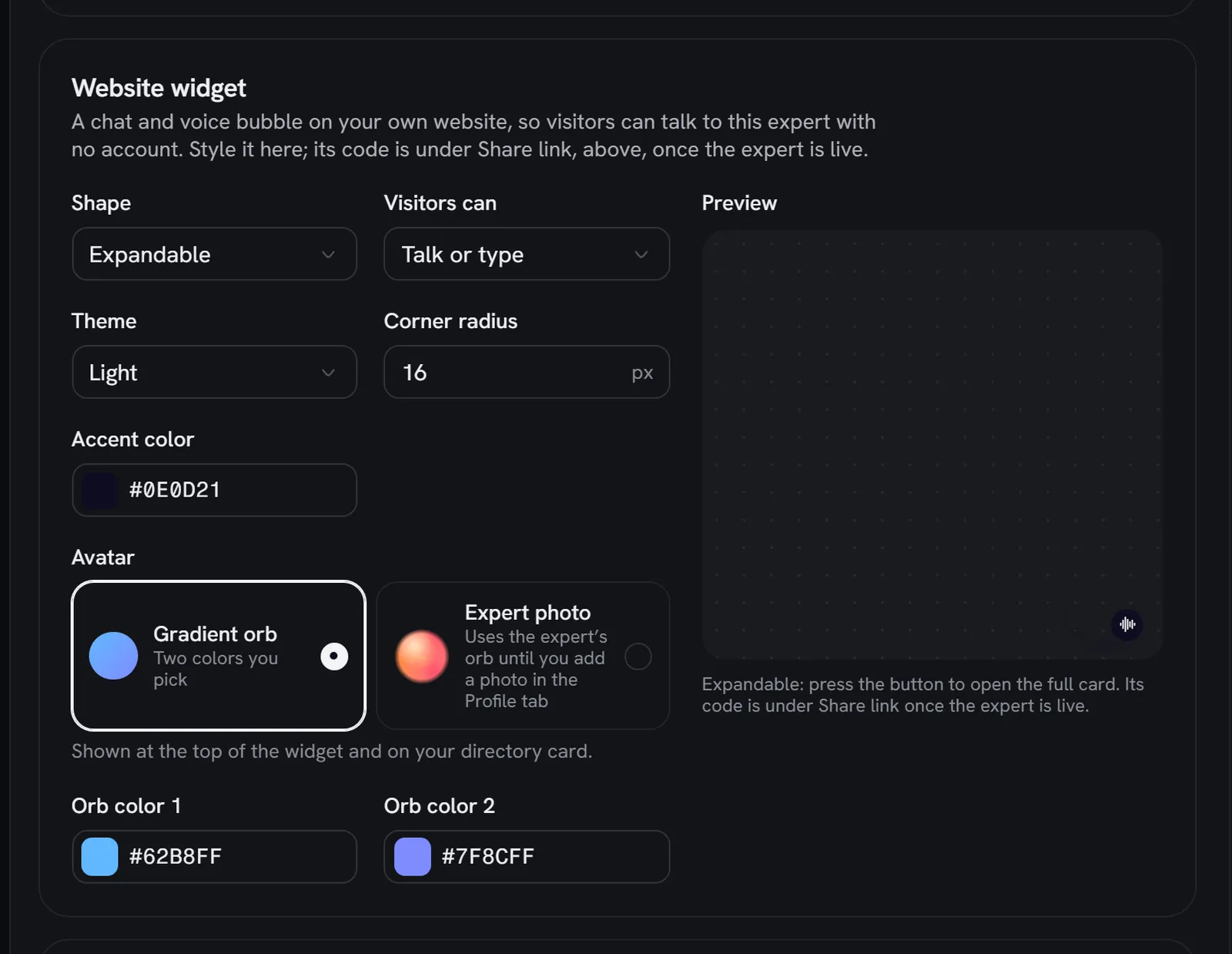
Under Interface:
- Greeting: shown and spoken first. Leave it blank to use the expert’s first message.
- Show live transcript: shows the words as they’re spoken during a call.
- Let visitors send it to meetings: lets visitors invite the expert into their own meeting. See Meetings.
Save the expert to apply changes. Sites that already have the widget pick up the new style within about a minute. You don’t need to change the snippet.
Allowed websites
By default, a published expert’s widget works on any site. To stop others from putting your expert on their site and spending your credits, list the sites that may show it.
How entries match:
Paths are ignored. Wildcards over a whole domain ending, like *.com, are refused.
To set a default for all experts, go to Settings → General → Websites that can embed your experts. An expert’s own list replaces the workspace default. It isn’t added to it.
An empty list means any site. On a site that isn’t allowed, the bubble doesn’t appear and any call or chat it tries is refused. Your share link keeps working wherever it’s opened.
Troubleshooting
- No bubble on your site. Check that the expert is published and that your site’s address is in Allowed websites, with the right subdomain. Your browser’s console shows:
Rydhm: this website is not allowed to embed the expert "…". - You reset the expert’s link. The old link name in your snippet stops working. Copy the new snippet. See Reset a link.
- Visitors are told to try again later. Many people are talking to this expert at once, or a visitor hit a rate limit. See Public links.
Widget calls cost the same as web calls, and chats are charged by tokens. See Billing.