

Provider keys
By default, your experts run on Rydhm’s accounts with the speech and model providers. If you’d rather use your own, add your API key for that provider. Your experts’ calls then use your key, and the provider bills you directly for what they use.
Keys are set for the whole workspace. Only admins and the owner can see or change them. See Members and roles.
Supported providers
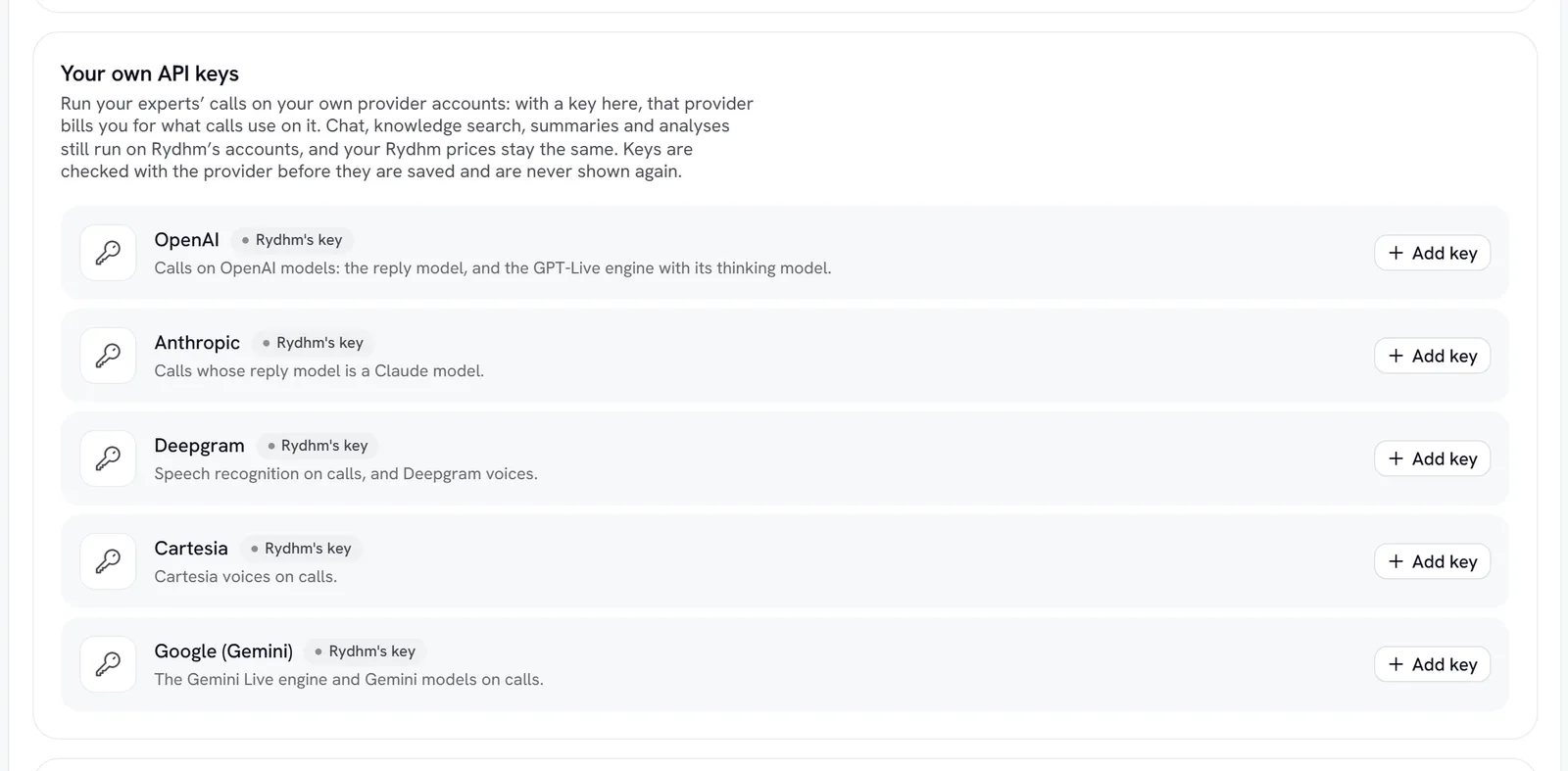
You can add one provider or all five. Any provider without your key keeps using Rydhm’s. To find out which providers an expert uses, see Voice engines and Voices.
Add a key
Open the section
Go to Settings → Integrations and find Your own API keys. Each provider has its own row. Without a key, the row shows Rydhm’s key.
What happens to the key depends on the provider’s answer:
A refused key is never saved, so a typo can’t quietly break your calls.
Check, replace or remove a key
- Check asks the provider again. Use it after a provider outage, or after you changed the key’s permissions. If the provider now refuses it, the row shows Key refused.
- Replace saves a new key in place of the old one. Use it to rotate keys.
- Remove deletes the key. Your experts go back to Rydhm’s key for that provider on their next call.
Adding and replacing keys is limited to 20 times an hour per workspace.
What changes when you use your own key
Your Rydhm credit rates don’t change. A call still uses the same credits per minute as listed in Billing. On top of that, the provider bills your own account for the usage it handled.
What uses your key, and what doesn’t:
- Uses your key: voice calls, meaning web calls, the website widget, share links, phone calls and experts in meetings.
- Still uses Rydhm’s accounts: text chat replies, post-conversation analysis, meeting summaries, web search and the expert builder.
- Your provider’s own limits now apply to your calls. If your account runs out of credit or hits a rate limit, calls that need that provider can fail. Watch the Conversation failures monitor in Alerts.
How keys are stored
- Each key is encrypted with AES-256-GCM before it is stored.
- After saving, the full key is never shown again, in the app or through the API. You only see the last four characters.
- Keys are decrypted only when a call starts, and only for that workspace’s calls. A replaced key takes effect on the next call.
- Adding and removing keys is recorded in the audit log with the provider’s name only, never the key.
- Workspace exports never include provider keys.
Gotchas
- One key per provider. You can’t set different keys for different experts.
- Use a key with the right access. For example, an OpenAI key restricted to some models may pass the check but fail on the model your expert uses.
- Removing a key doesn’t revoke it. It stays valid at the provider. Revoke it in the provider’s dashboard if you no longer need it.