

Export your data
A workspace export is a zip file with everything your workspace stored in Rydhm: experts, knowledge, conversations, transcripts, meetings, phone calls, analyses, members and the audit log. Use it for backups, audits, or to move your data somewhere else.
Only admins and the owner can request and download exports. See Members and roles.
Request an export
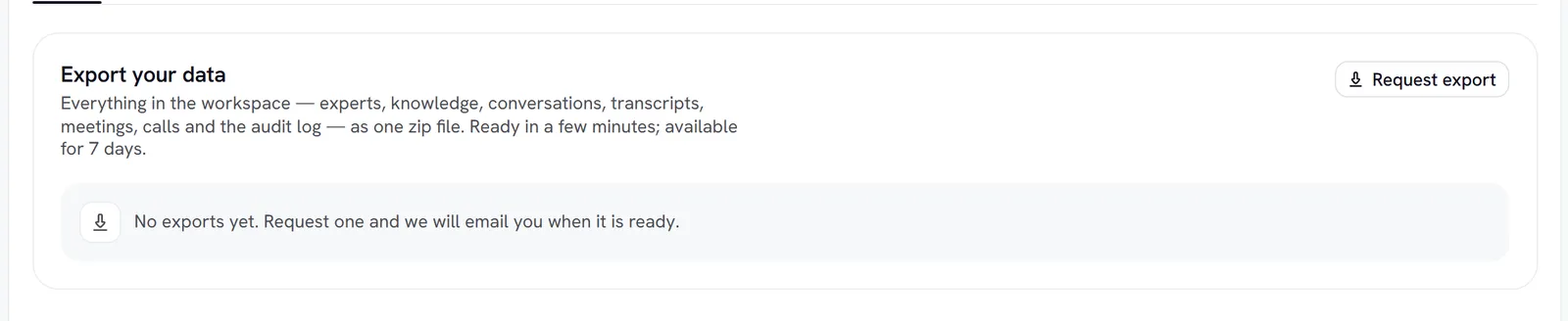
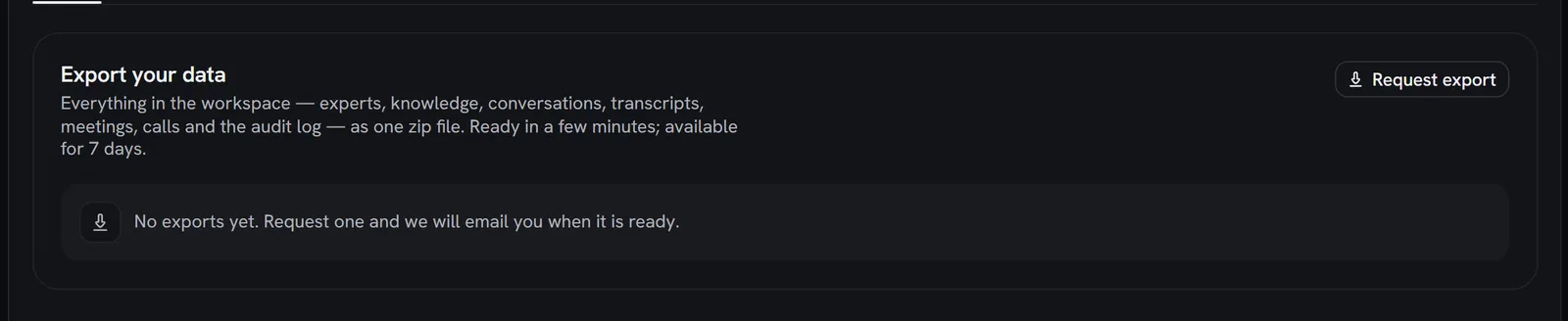
Start it
Go to Settings → General, find Export your data, and select Request export. You’ll see Export started.
To see older exports, select All exports on the card.
How long it lasts
- An export can be downloaded for 7 days after it’s ready. After that it shows Expired, and the file is deleted. Request a new one when you need it.
- The link behind Download is short-lived (10 minutes at most). Selecting Download again gets a fresh one, as long as the export hasn’t expired.
- Exports are private. Only admins of your workspace can download them.
Limits
- One export at a time. While one is queued or preparing, you can’t start another.
- One request an hour per workspace.
- 400 MB of uncompressed data at most. If your workspace holds more, the export fails with: “This workspace has more data than one export can hold. Contact support and we will prepare it for you.”
What’s inside
Every export includes a README.txt that describes the files. JSON files are whole documents. .jsonl files have one JSON object per line, so you can stream them. Every timestamp is UTC in ISO 8601, and ids match across files.
What’s not inside
- API keys and their hashes, webhook signing secrets and tool credentials.
- Your own provider keys.
- Anything that belongs to another workspace.
- Conversations, meetings and calls you deleted that are still in their 30-day undo window. To include one, restore it first from Conversations, then request a new export.
An export is a copy. Requesting one doesn’t change or delete anything in your workspace. To delete the workspace itself, see Security.