

Create an expert
Admins create experts from New expert, on Home or the Experts page. It offers four ways in. Whichever you pick, you land in the expert’s settings afterwards, where you can change everything.
Describe it
Write the brief
Choose New expert → Describe it. Under What should your expert do?, describe the job in up to 4,000 characters. The starter chips (Lead qualification, Appointment booking, Customer support, Product consultation, Meeting co-pilot) fill in an example brief you can edit.
Add documents and a website (optional)
Attach documents adds files to the expert’s knowledge: PDF, Word (.docx), Markdown, text or CSV, up to 5 files and 8 MB in all. Website (optional) gives Rydhm a site to research.
Build
Choose Build expert, or press Ctrl+Enter. A timeline shows each step: reading your brief, researching on the web, naming it and writing its greeting, writing its instructions, choosing a voice and languages, saving what it learned, and creating the expert. It usually takes about a minute.
Stop cancels the build. If a build fails, nothing is created: choose Edit description or Try again.
Start from a template
Choose New expert → Start from a template. Each template is a ready expert for a real job, with instructions, a greeting, a voice and languages. Narrow the list with Kind (Inbound, Outbound, Meetings), the language and industry filters, or Search templates. Hear greeting plays the template’s opening line. Use template creates the expert and opens it.
Build from scratch
Choose New expert → Build from scratch. Enter a Name and, optionally, What it does (one line shown on Home, the public page and in the directory). Choose Create expert. The expert starts blank: write its persona next.
Import from JSON
Choose New expert → Import from JSON, then paste, drop or upload a file exported from an expert’s settings (⋯ → Export as JSON).
An export carries the expert’s name, description, instructions, greeting, voice settings and tool settings. It does not carry knowledge documents or secrets: a custom tool arrives without its secret header values and asks for them again.
To copy an expert inside the same workspace, use ⋯ → Duplicate instead. The copy is private until you publish it.
Find your way around the editor
Open an expert from Experts to reach its settings. The header shows its picture, name, status and description, with these actions:
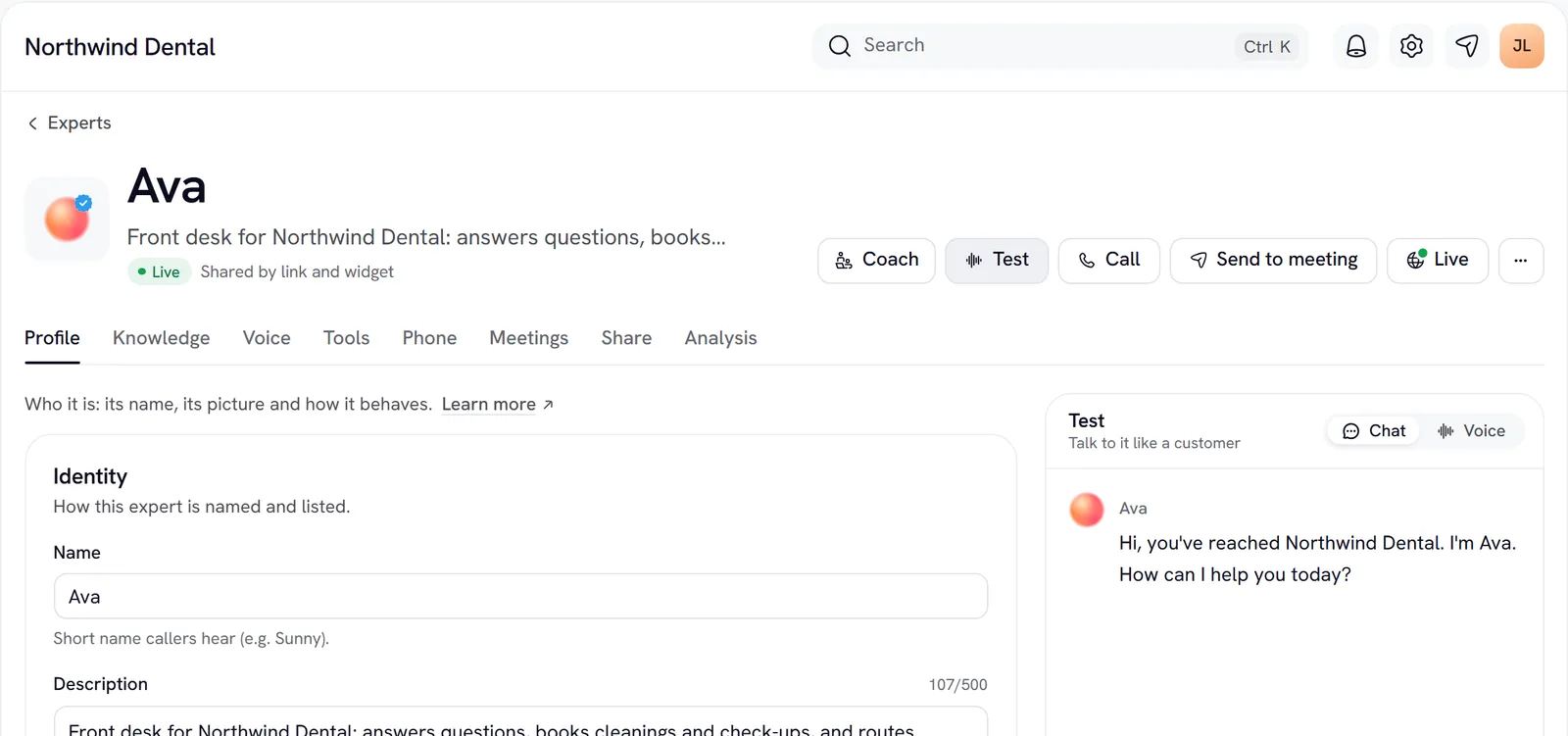
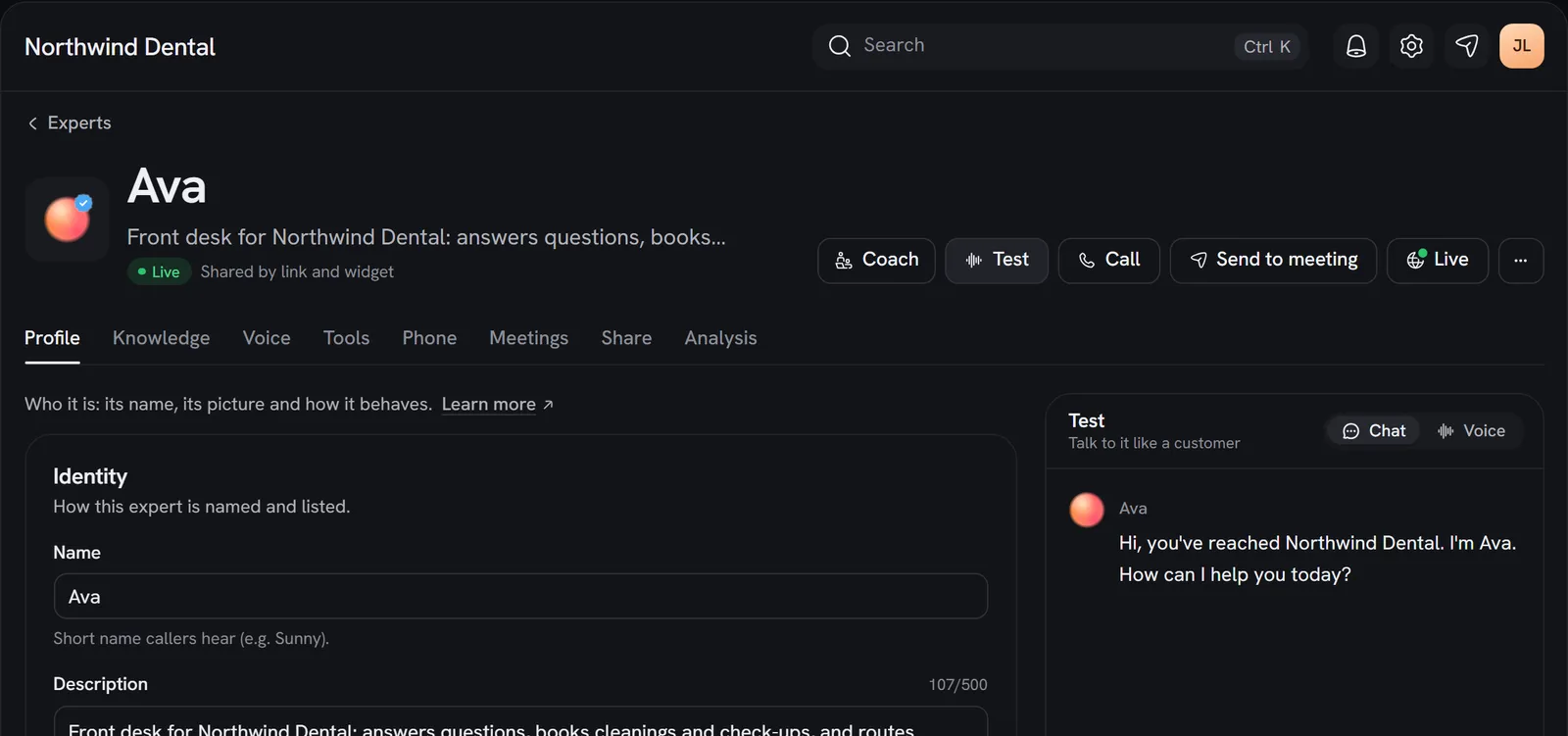
- Coach: reviews this expert’s conversations and suggests changes.
- Test: opens the Test panel.
- Call: the expert’s phone number, and calls it places for you. See Phone.
- Send to meeting: sends the expert into a meeting. See Meetings.
- Publish: sets visibility and gives you the link and embed snippet. See Share links.
- ⋯: History, Copy link and Copy expert ID for everyone; Duplicate, Export as JSON and Delete for admins.
Below the header are eight tabs:
Changes on Profile, Voice, Phone and Share wait for Save changes (on a phone, Save in the bar at the bottom of the screen). Knowledge, Tools and Meetings save on their own, as you make each change.
Gotchas
- Only admins create, publish and delete. Members see admin-managed tabs read-only, marked with a lock.
- Your plan limits how many experts you can have. See Billing.
- Deleting an expert that answers a phone number is refused until you give the number to another expert, or release it, in Settings → Phone numbers.
- Two people editing at once is safe. A save sends only the fields you changed. If a teammate saved the same field in the meantime, Rydhm asks: Keep mine and save or Use theirs.
- Leaving with unsaved edits asks first: Keep editing, Save and leave or Discard changes.